Dealer Guide
Audience: Dealer Admins, Regional Managers, and Sales Reps. Where you work: the dealer portal at
/dealer/*. New here? Read the Platform Overview first.
As a dealer, QuoteStore is where you turn AutoQuotes (AQ) projects into catalogs your buyers order from, look after your buyer organizations, and work their orders from review to delivery.
This guide follows the sidebar, top to bottom.
1. Roles & what each can see
Every dealer user belongs to one dealership and has one of three roles:
| Role | What they see |
|---|---|
| Admin | Everything. Only admins manage the team, regions and districts, the AutoQuotes API key, buyer group admins, and organization settings. |
| Regional Manager | The buyer organizations in the districts of their assigned regions, and those organizations’ orders. Some dealerships call this role a district manager. |
| Sales Rep | The buyer organizations in their assigned districts, and those organizations’ orders. |
Two things refine this:
- No assignment means no restriction. A regional manager or sales rep with no regions, districts or buyer organizations assigned sees the whole dealership. Assignments narrow what a person sees; they are not required.
- Specific buyer organizations. An admin can also limit a person to named buyer organizations, on top of any regions and districts.
What a person can see is the same everywhere: the Orders list, the dashboard figures, Analytics, the notifications they get in the app, and the emails they are sent.
2. Finding your way around
After signing in you land on the Dashboard: revenue from completed orders, order counts, project and buyer counts, a revenue and profit trend, orders by status, and your most recent orders. Non-admins see figures for the buyer organizations they can see.
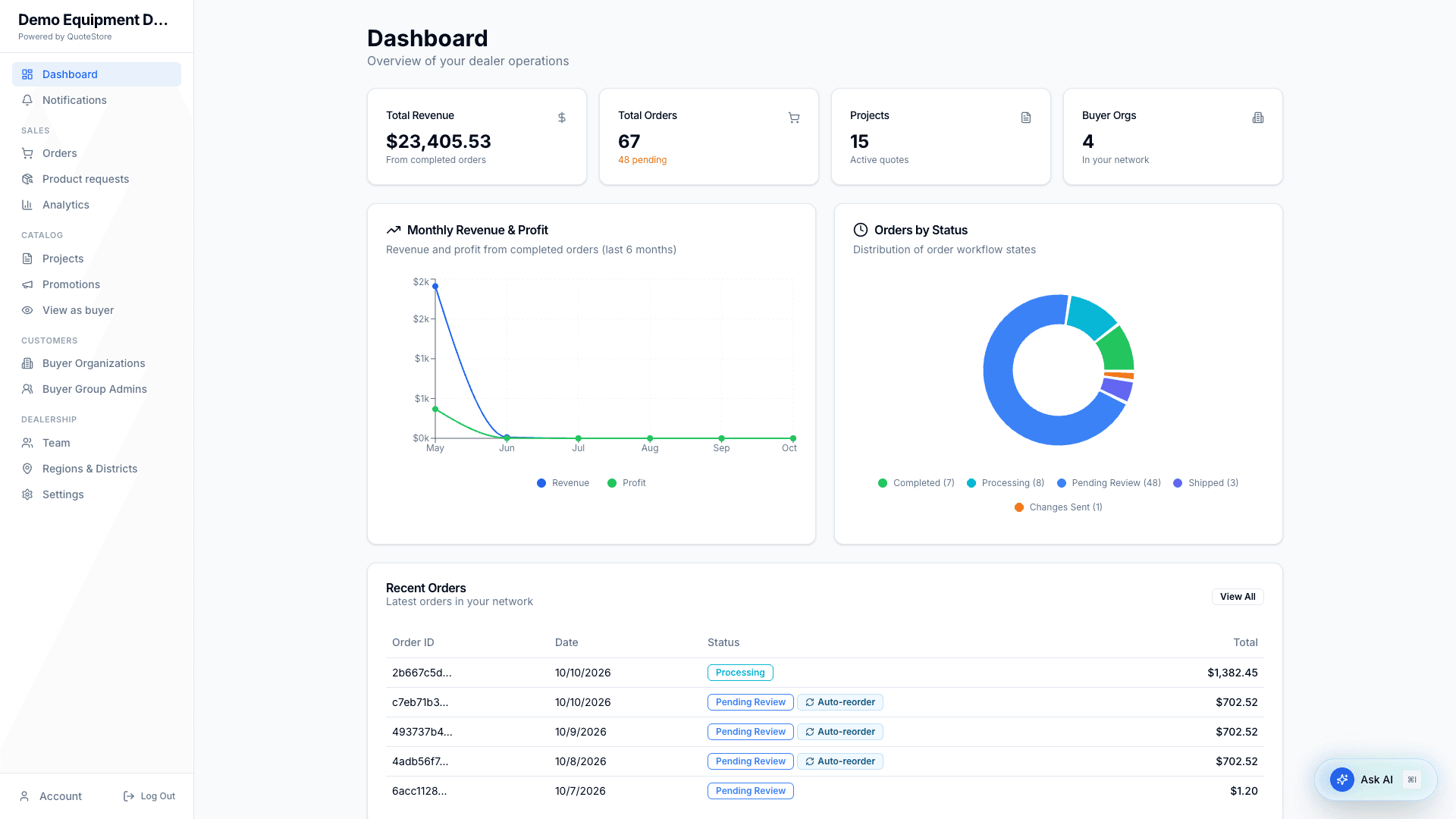
The sidebar shows your dealership’s name at the top and is grouped:
| Group | Pages |
|---|---|
| (top) | Dashboard, Notifications |
| Sales | Orders, Product requests, Analytics |
| Catalog | Projects, Promotions, View as buyer |
| Customers | Buyer Organizations, Buyer Group Admins, and Resellers if you are a master distributor |
| Dealership | Team, Regions & Districts, Settings |
Account and Log Out are at the bottom.
The floating Ask AI button opens Quotestore Insights. Ask about your orders, revenue, and buyer organizations, or how to do something in the dealer portal. How-to answers stay inside your role: dealer admins also get team, region, settings, and buyer-group-admin steps; regional managers and sales reps do not. It can answer with charts, tables, and figures from your live data.
Your plan
Your dealership is on the Basic or the Standard plan. Settings → Your plan shows which, what it includes, and how many buyer portals you are using.
| Basic | Standard | |
|---|---|---|
| Orders, projects, buyers, reorder lists, Open Credit, notifications | ✓ | ✓ |
| Buyer portals (buyer organizations) | 25 | No limit |
| Approval by a regional manager or admin after a sales rep | — | ✓ |
| Promotions | — | ✓ |
| Analytics | Monthly summary | Everything, with downloads |
| Exporting orders to CSV | — | ✓ |
On Basic, what the plan does not include is simply not there: no Promotions page, no Export CSV button, no regional approval setting. To change plans, contact Atero. An upgrade takes effect at once, and nothing you set up before is lost when a plan changes.
3. Notifications
Notifications lists what has happened that concerns you: new orders, orders a buyer admin has approved, messages on orders, credit-limit events, product requests, finished AutoQuotes imports, and skipped auto-reorders. You only see notifications for buyer organizations you can see. Filter by type, or show unread only.
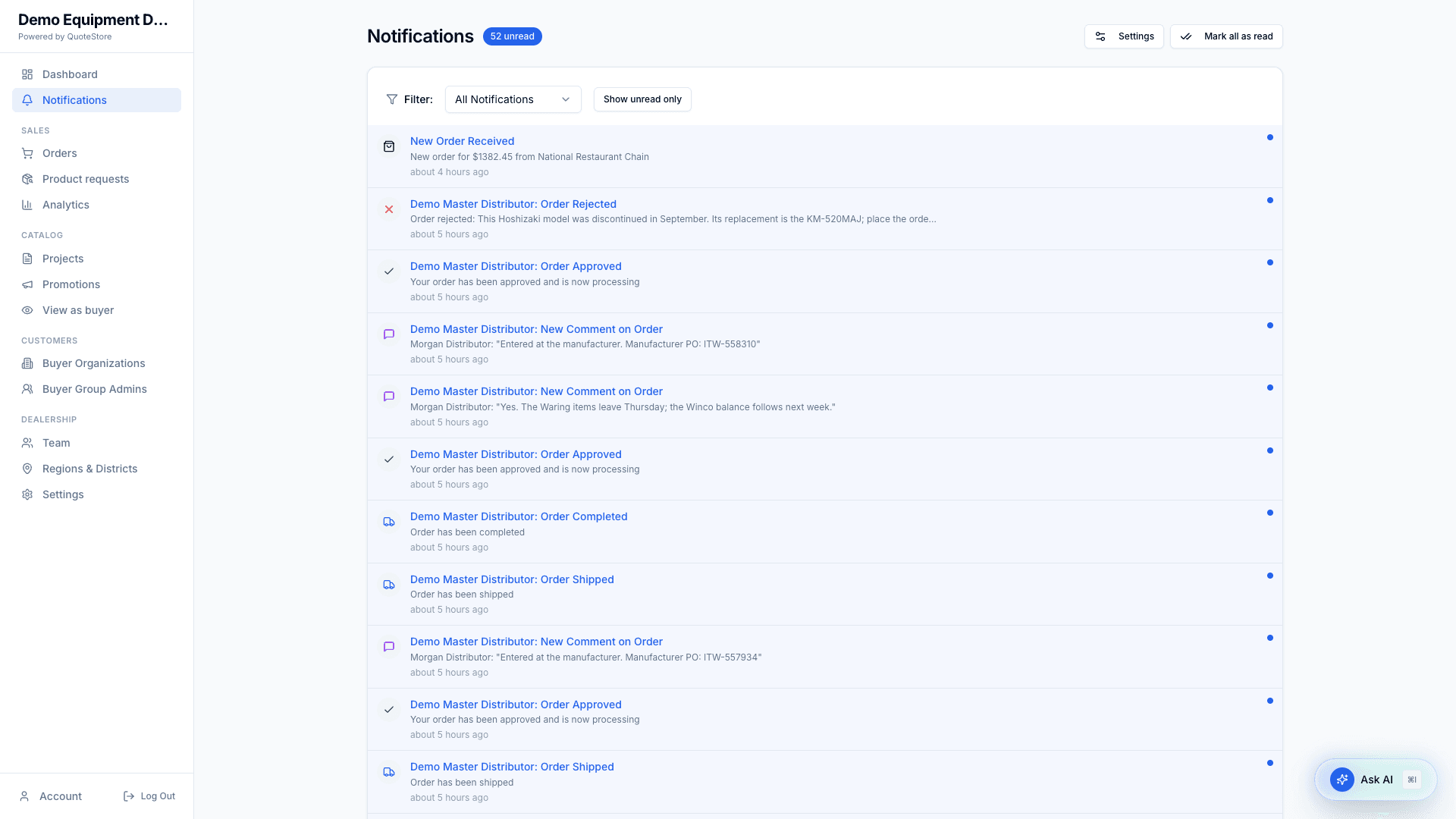
Many of these are also sent by email: a new order, a message on an order, an order waiting for your approval, and a buyer going over its credit limit.
Choosing what you receive
On the Notifications page, select Settings.
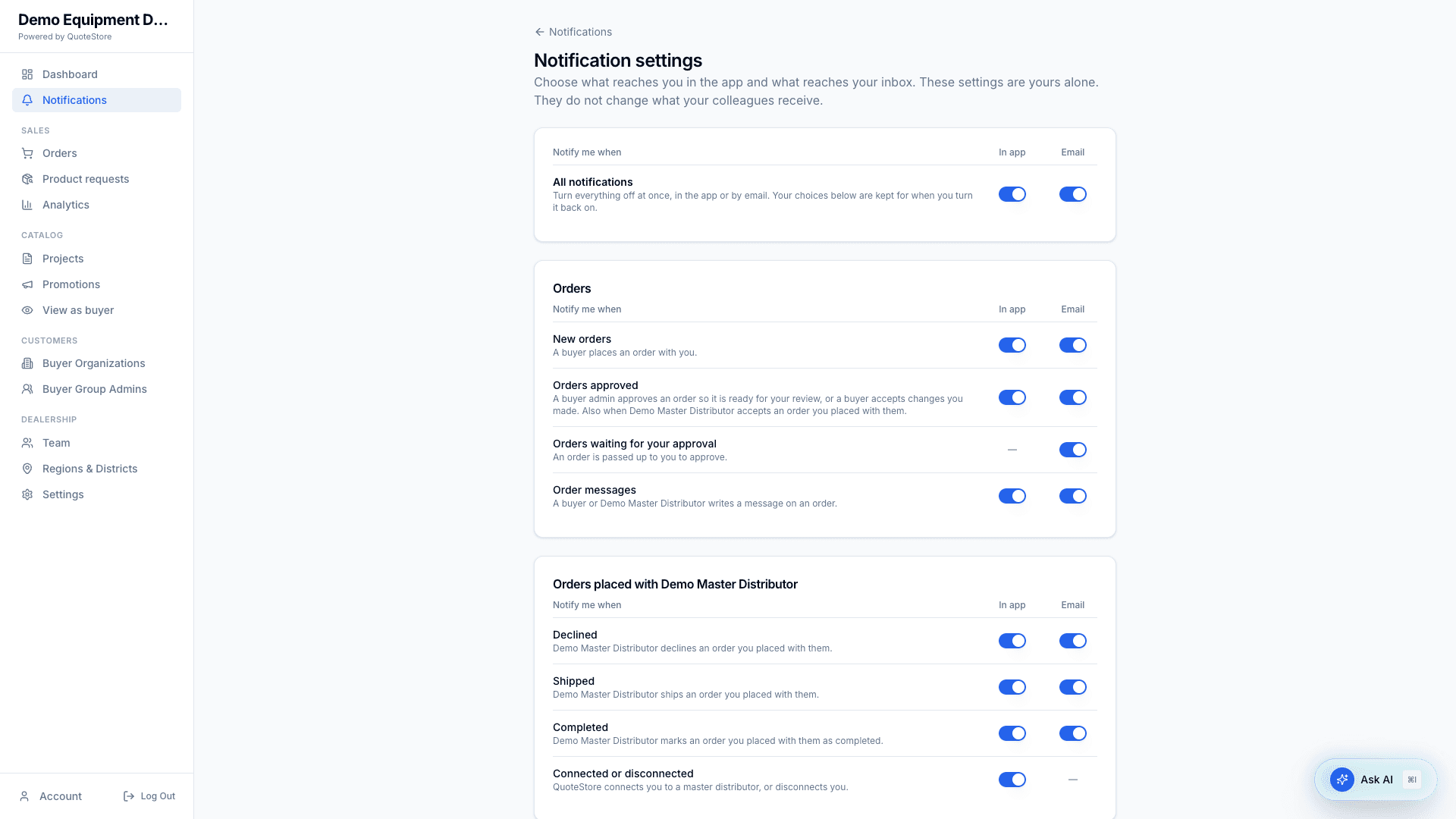
- Each notification has a switch for In app and a switch for Email. A dash means it is not sent that way.
- All notifications at the top turns everything off at once, in the app or by email. Your choices underneath are kept for when you turn it back on.
- The list shows only what can reach you. Orders waiting for your approval, for example, appears for regional managers and admins.
- These settings are yours alone. They do not change what your colleagues receive.
Emails about your own account, such as invitations and password resets, are always sent.
4. Orders
Orders shows every order you are allowed to see, newest first.
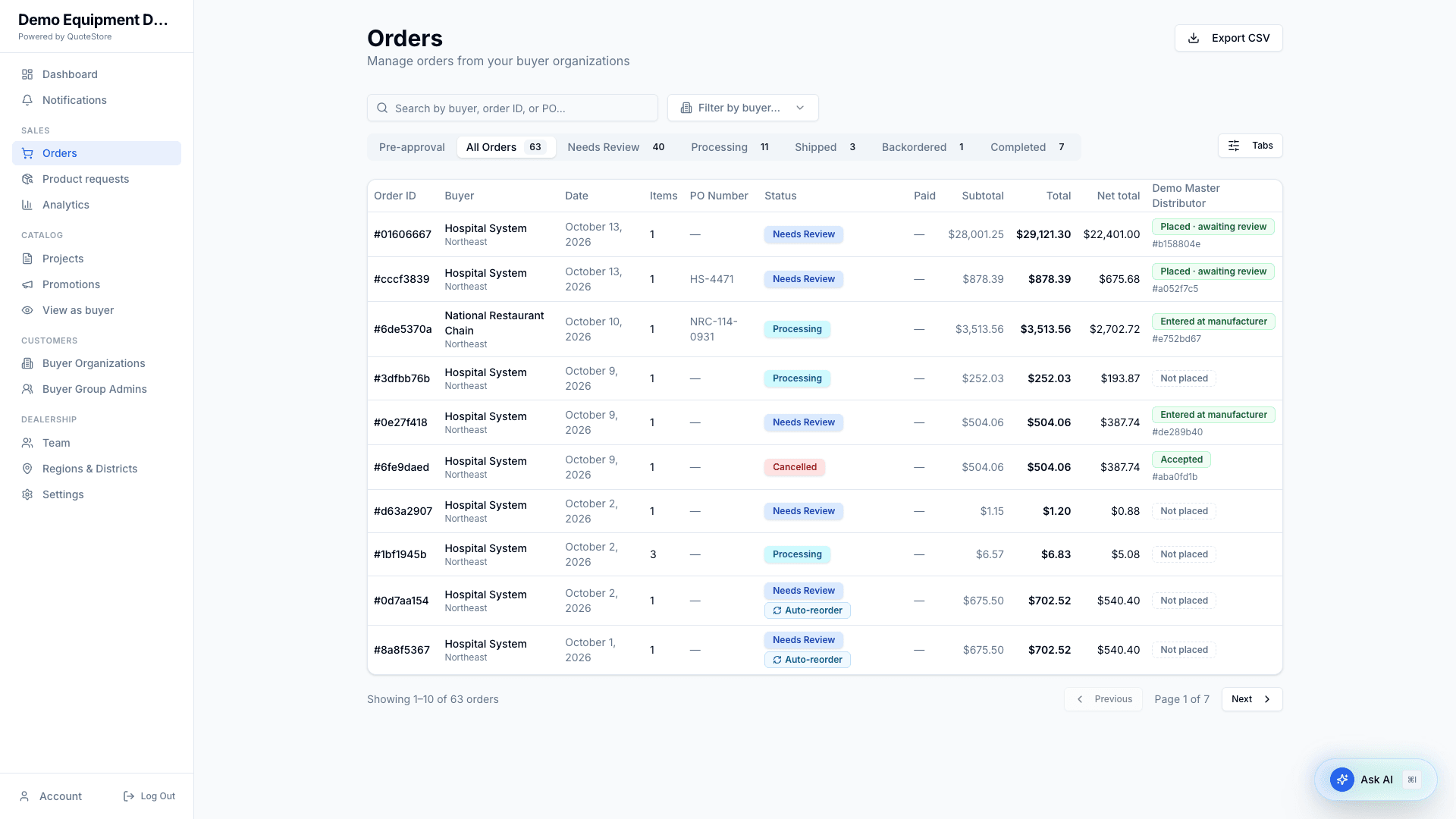
- Status tabs, with counts: Pre-approval (waiting for a regional manager), All Orders, Needs Review, Needs Admin, Processing, Shipped, Backordered, Completed, Cancelled. On the Basic plan any approval is final, so Pre-approval and Needs Admin do not appear.
- Backordered lists open orders with any line on backorder. It is not a status of its own: those orders also appear under Processing or Shipped, and leave the tab once completed.
- Tabs (top right) chooses which of those tabs you see. Needs Admin and Cancelled start hidden. Your choice is remembered on that computer.
- Search by buyer, order ID, or PO, and filter by buyer organization.
- An order placed automatically from a buyer’s reorder list is marked Auto-reorder.
An order that a buyer’s own admin still has to approve does not appear here at all. It reaches you once they approve it.
Exporting orders to CSV
Standard plan. Export CSV opens the Export Orders dialog:
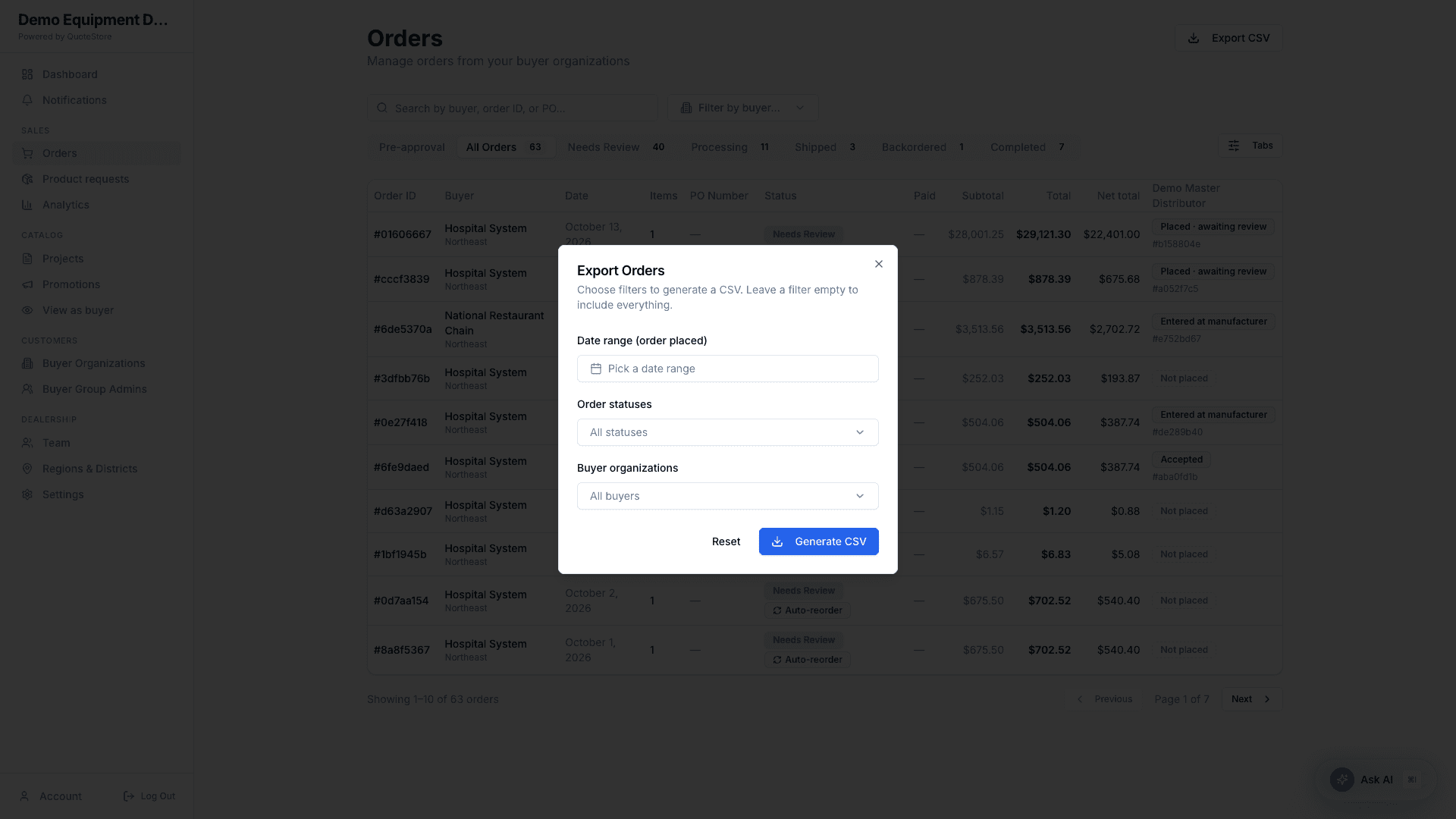
- Date range — by when orders were placed.
- Order statuses — one or more.
- Buyer organizations — limit to specific buyers.
The download is one row per order: Order ID, PO Number, Buyer Org, Region, District, Status, Payment (Paid/Unpaid), Placed By, Items, Subtotal, Tax Rate, Tax, Shipping, Total, Requested Delivery, Placed At, Paid At, Dealer Modified, and Source (Manual, Auto-reorder, or Reseller for an order a reseller placed with you). You only get orders you are allowed to see.
Working an order
Open an order to see its line items, the buyer, addresses, totals, payment status, and the comment thread.
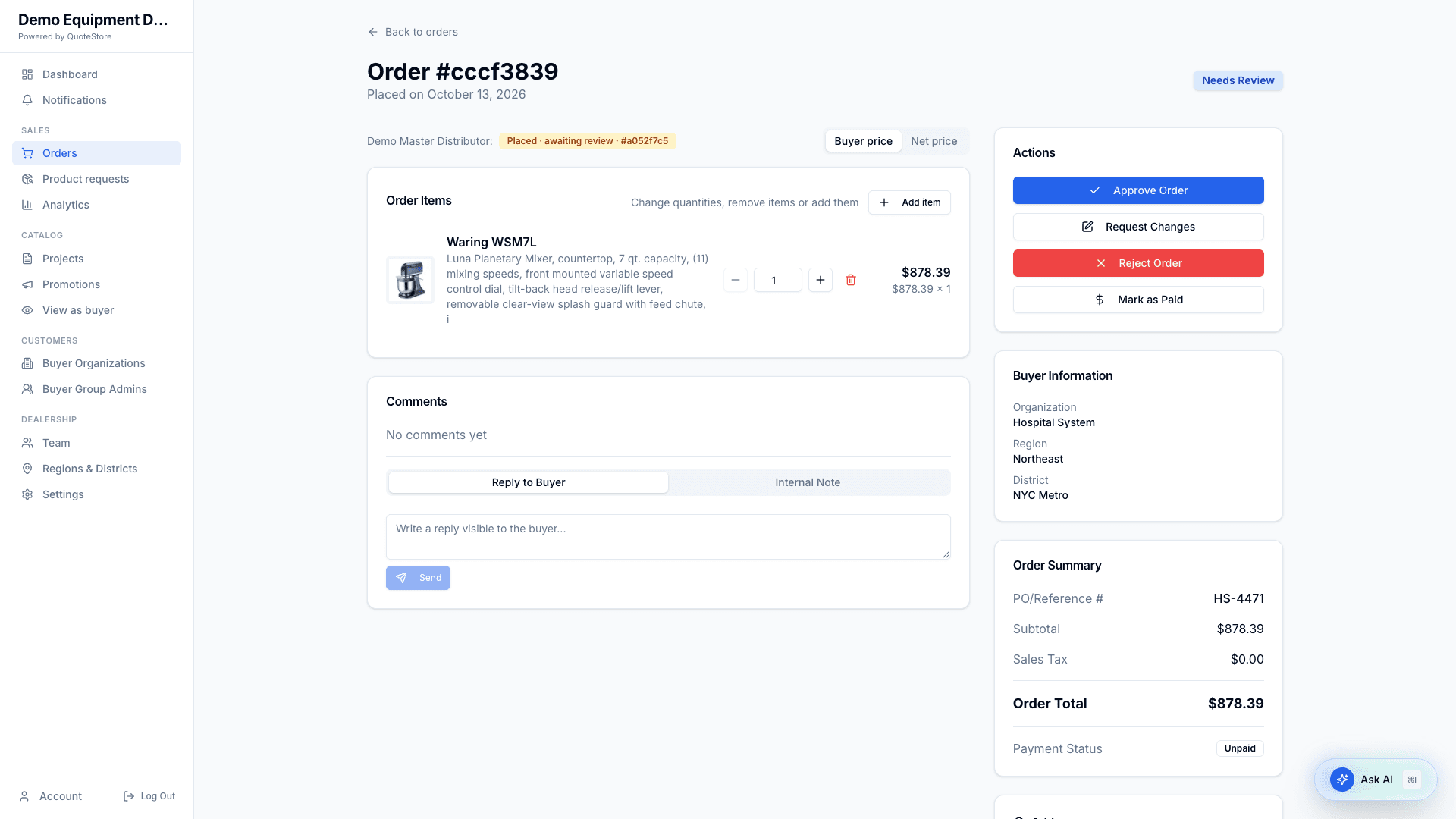
The Actions panel changes with the order’s state. While an order is waiting for review you can:
- Approve Order — where the order goes next depends on who approves:
- Sales Rep → Processing, unless the buyer’s district is set to Require regional approval, in which case it goes to Pre-approval for a regional manager.
- Regional Manager → Needs Admin.
- Admin → Processing.
- From Pre-approval, a Regional Manager or Admin approves it to Processing. From Needs Admin, an Admin does. Anyone else sees who the order is waiting for instead of Approve Order — so whoever escalated an order cannot then release it themselves.
- Request Changes — send the buyer your changes to the order, with a comment explaining them. See Changing an order below.
These actions are there while the order is in Needs Review, Pre-approval or Needs Admin.
- Reject Order — cancels the order, with a reason the buyer sees.
- Mark as Paid — records payment.
Once an order is Processing you can Mark as Shipped, and then Mark as Completed.
The buyer is told at each step, in the app and by email: approved, changes requested, rejected, shipped, and completed.
Configured products. A configured product is one line at one price, the same as the buyer sees. Under it you see each line of it, the base model first, with its own model number, name and price, so you know exactly what to order.
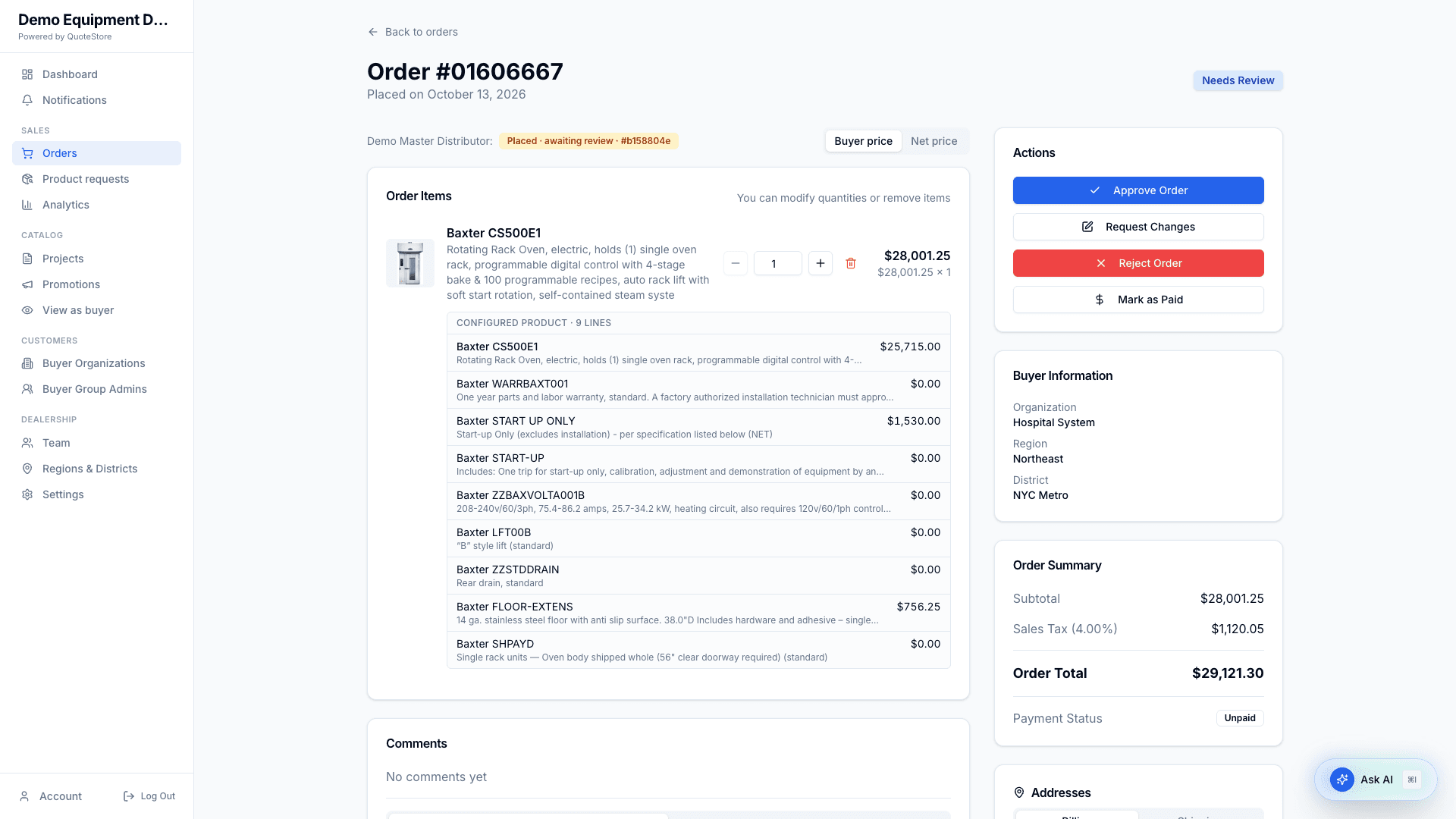
- The price on the main row is the total. The prices beneath add up to it.
- The buyer sees the same list on their order, without the prices.
- Changing the quantity or removing the line applies to the whole product.
Changing an order
While an order is waiting for review — in Needs Review, Pre-approval or Needs Admin — you can change it before approving it:
- Change a line’s quantity, remove a line, or restore one you removed.
- Add item — add a product the buyer can order. You can only choose from that buyer’s own catalog, the projects linked to their organization, and it is priced as they would pay at checkout, promotions included.
Your changes stay with you until you send them. A banner says so, and the order cannot be approved while it has changes the buyer has not seen. Send them with Request Changes and a comment, or Discard changes to put the order back as the buyer placed it.
Once sent, you cannot take the changes back: the order waits for a buyer admin, and shows as Changes Sent under All Orders (it has no tab of its own). The buyer admin sees which lines you added, which quantities you changed and which lines you removed, and either:
- Accept — the order comes back to you as Needs Review, and goes through your normal approvals again before Processing.
- Reject, with a reason they must give — every change is undone and the order comes back to you as they placed it, with their reason as a message on the order.
You are told either way.
Backorders
When you approve an order, you are asked whether anything will not ship with the rest.
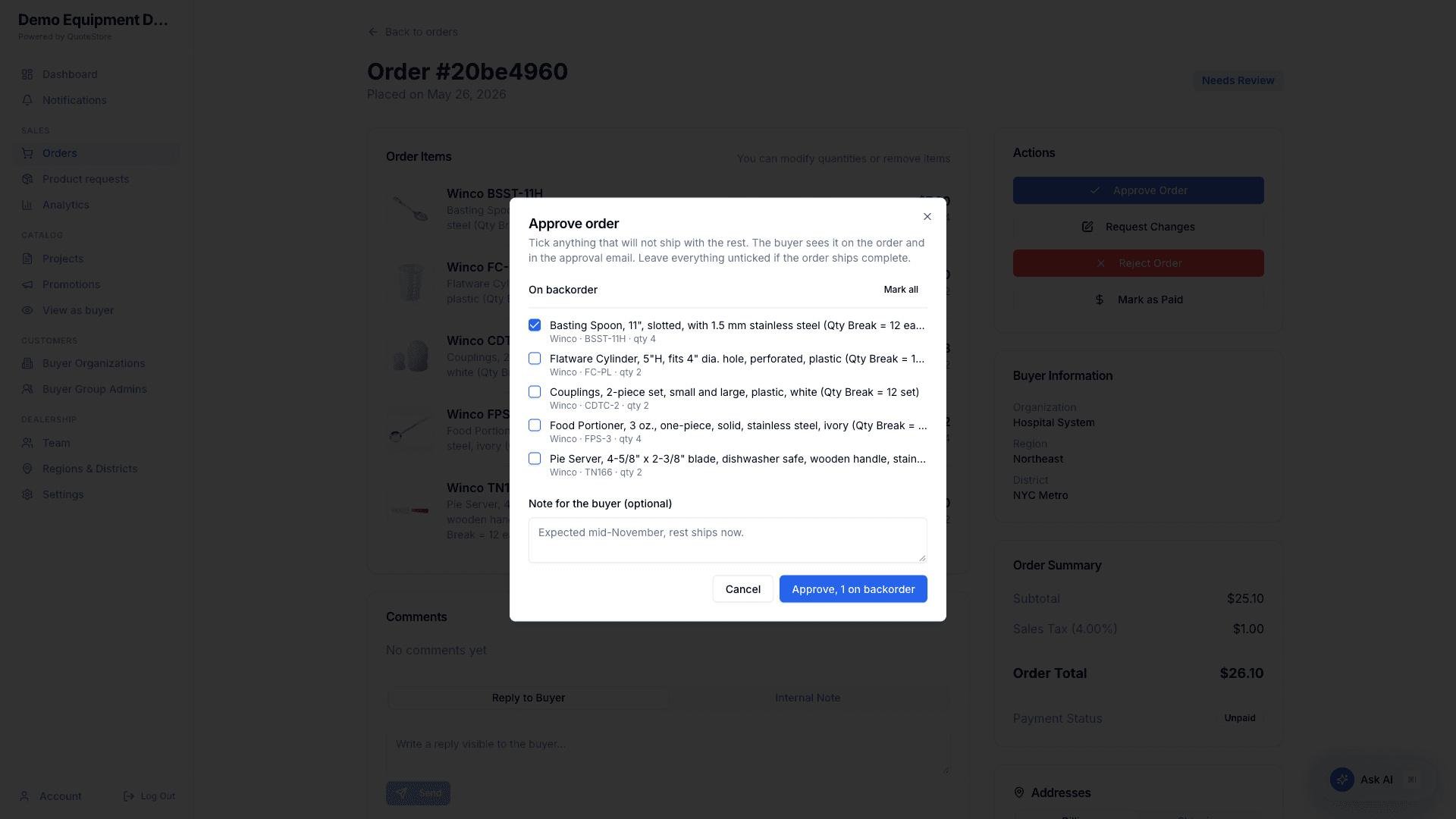
Tick the lines that are on backorder, or Mark all if the whole order is. You can add a note for the buyer, such as when you expect the items. Leave everything unticked if the order ships complete.
The buyer sees On backorder, with your note, on those lines of their order, and the approval email lists them. A backorder mark stays on the line until the order is completed; it cannot be cleared after approval. If the order needs a second approval (from Pre-approval or Needs Admin), that approver starts from the lines already marked and the note, and can change either.
Open Credit and orders
Each buyer organization has an Open Credit limit. An order’s total is held against it from the moment it is placed.
- If you change an order, the amount held follows the new total straight away.
- Rejecting or cancelling an order releases the amount.
- Mark as Paid gives the amount back to the buyer’s available credit.
Comments
Use Reply to Buyer for messages the buyer sees, or Internal Note for notes only your dealership sees. New comments and notes appear on the order without refreshing. A reply to the buyer is also emailed to them.
5. Product requests
Buyers can ask you to add a product that is not on any of their quotes. Those requests arrive here. You add the item in AutoQuotes, refresh the project, then mark the request as added.
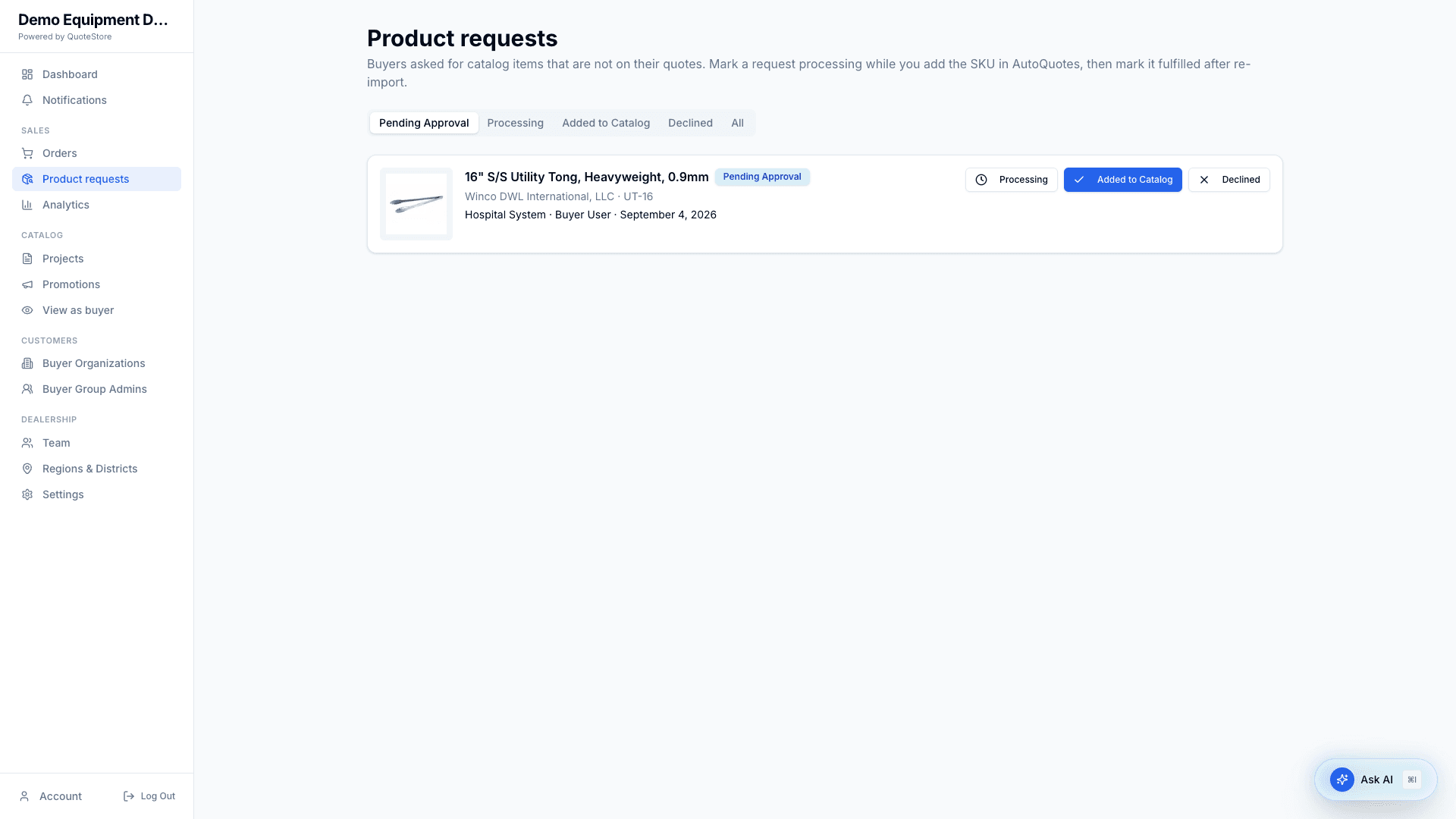
Tabs: Pending Approval, Processing, Added to Catalog, Declined, and All. Each card shows the product, the buyer organization, who asked, when, and any note.
On a pending or processing request you can choose:
- Processing — you are working on it (pending requests only).
- Added to Catalog — the item is now on a quote and available to the buyer.
- Declined — you will not add it.
Each action can include a Message to buyer. If you write one, the person who asked is emailed. A new request also sends you a Product requested notification.
6. Analytics
On the Basic plan, Analytics is a monthly summary: orders, order dollars, and active buyers for this month and each of the last eleven, with this month compared to last. Everything below — searches, product views, cart activity, open carts, one buyer organization’s activity, and the CSV downloads — is part of the Standard plan.
Analytics shows what your buyers do on the storefront — what they search for, look at, and add to their cart — next to what they order. You see only the buyer organizations you can see; dealer admins see all of them.
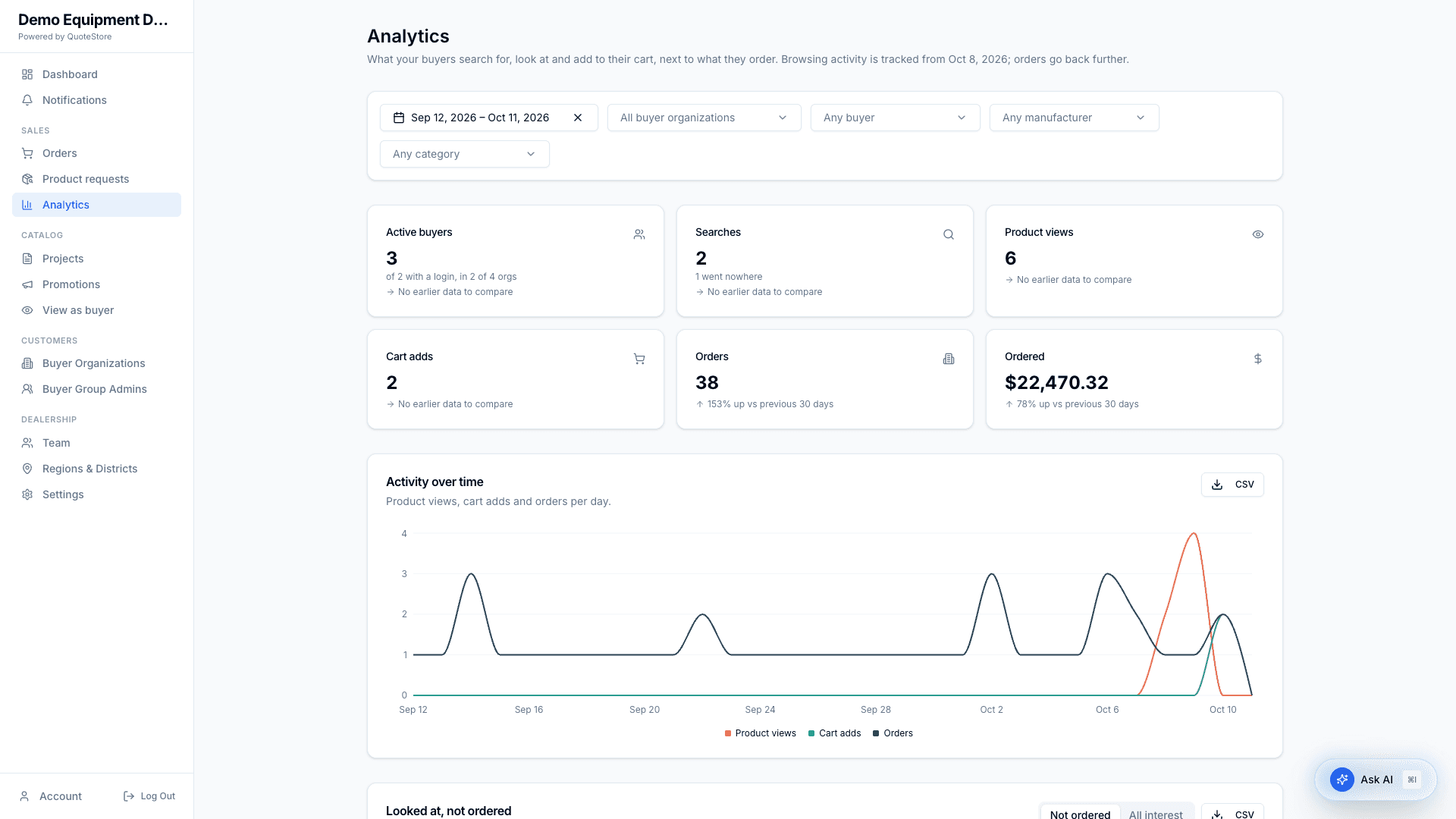
Browsing activity is recorded from the day tracking was switched on, which the page states at the top. Orders go back as far as your order history.
Filters (top of the page; they stay in the page address, so you can bookmark or share a filtered view):
- Date range — with shortcuts for the last 7, 30, and 90 days, each quarter, and year to date.
- Buyer organizations — one or several.
- Buyer — one person.
- Manufacturer and Category — narrow product views, cart adds, and orders. Searches are not narrowed by these, because a search has neither.
What the page shows:
- Summary — active buyers, searches, product views, cart adds, orders, and ordered dollars, each compared with the same length of time before.
- Activity over time — product views, cart adds, and orders per day.
- Looked at, not ordered — products a buyer viewed, added to cart, or saved, and has not ordered since the period began. Switch to All interest to see every product buyers engaged with and what they went on to order. Click a product to see which buyer organizations looked at it, whether each has ordered it, and who did what and when.
- Searches — Dead ends are searches a buyer did not follow by opening, carting, or saving anything; these are the likeliest gaps in your catalog. Top ranks searches by how often they were run. Click a search to see who ran it and what they did next.
- Open carts — carts holding items that nobody has touched for a chosen number of days.
- Buyers — one row per buyer organization: how many users have signed in, activity and orders in the period, and a status. Gone quiet means they have ordered before and have neither ordered nor been active in the last 30 days. Never signed in means they have users but none has logged in.
Click any column heading to sort. Every table and the chart has a CSV button.
One buyer organization
Click a buyer organization’s name to open its page: its People (last sign-in and what each did in the period), its Recent activity (searches, views, cart changes, and orders), and In their catalog, never ordered. Click a person to see only their activity.
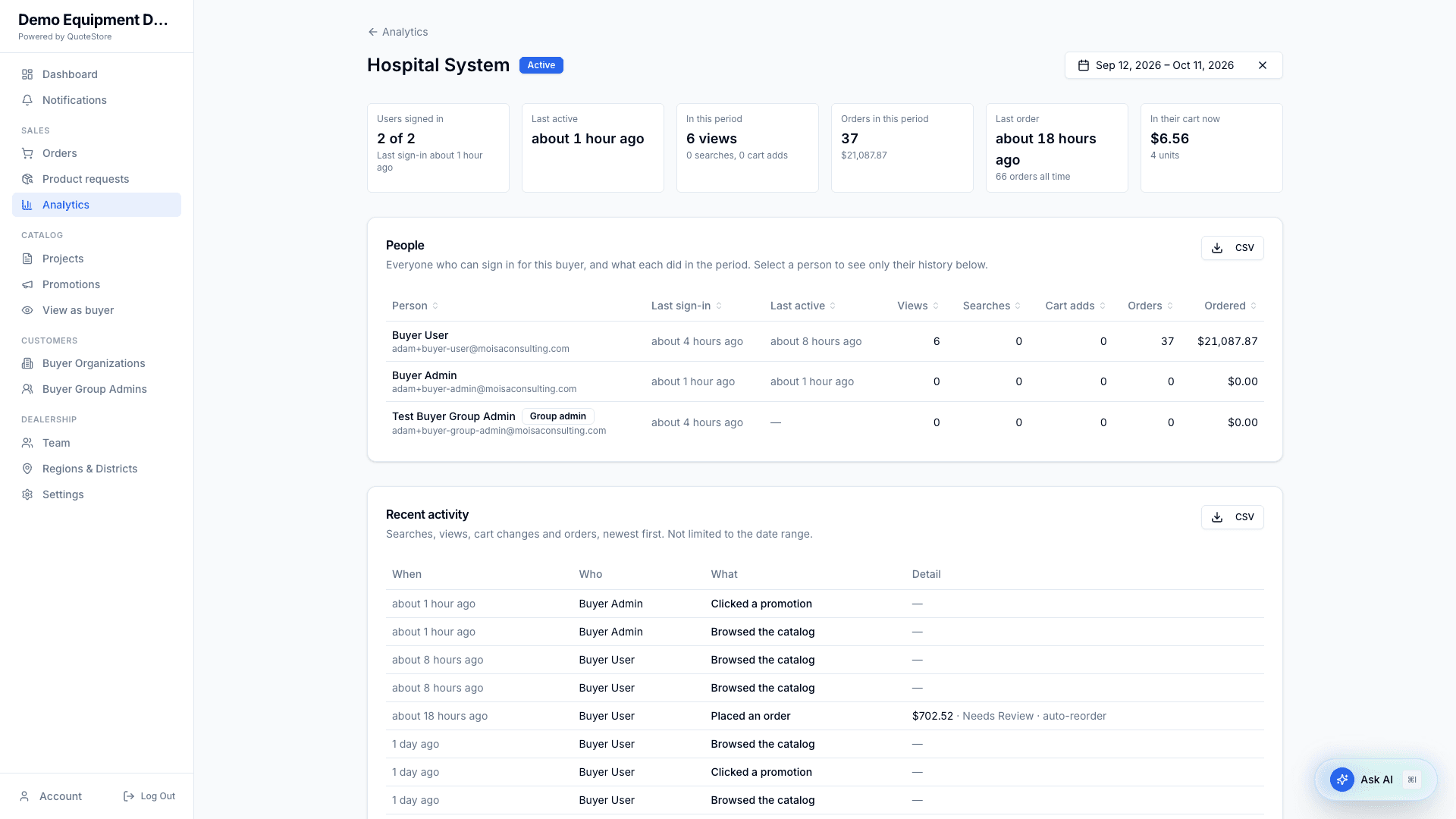
“Ordered” on the Analytics page counts placed orders except cancelled and rejected ones. It is not the same number as completed-order revenue on the Dashboard.
Your own visits are never counted: View as buyer and anything a QuoteStore administrator does while signed in as one of your buyers are left out.
7. Projects (catalogs)
Projects are the catalogs you publish to buyers. They come from AutoQuotes — there is no Create Project button. The list shows product counts, how many buyer organizations each is linked to, status (Active / Archived), and validity dates. Filter by Active / Archived / All and search by name.
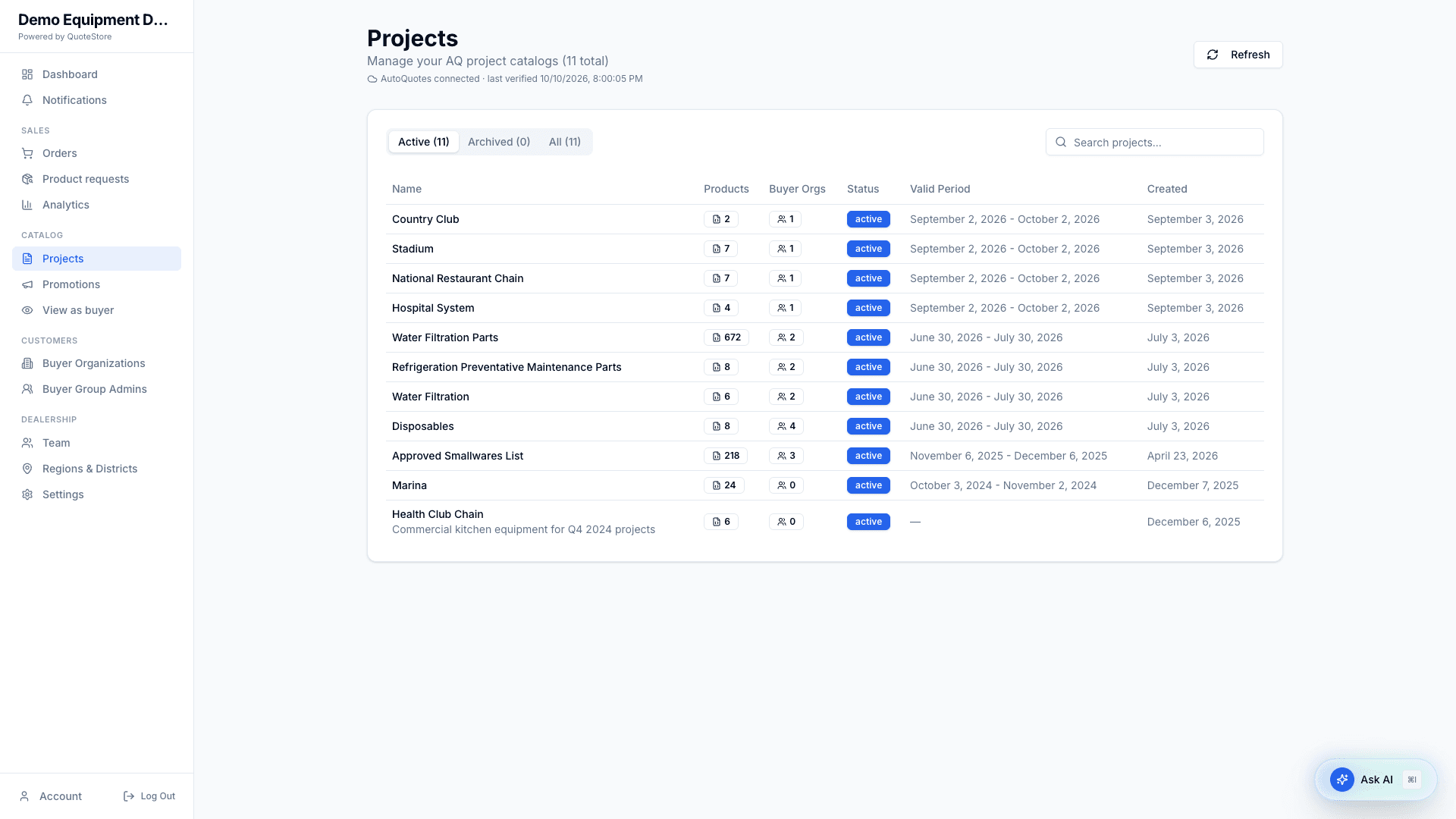
- Refresh — with an AutoQuotes API key set, this brings in AutoQuotes projects changed in the last 7 days: new projects appear and existing ones update. A project that has not changed in AutoQuotes is skipped. Without a key, Refresh only reloads the list.
- A background sync also runs about every four hours when the API key is set.
- A project that arrives from AutoQuotes starts Archived. Activate it and link buyer organizations to put it in front of buyers.
Project detail
Click a project for its stats (products, orders, sales, profit), the full product table with net and sell prices, discounts and profit, the buyer organizations linked to it, and its import history.
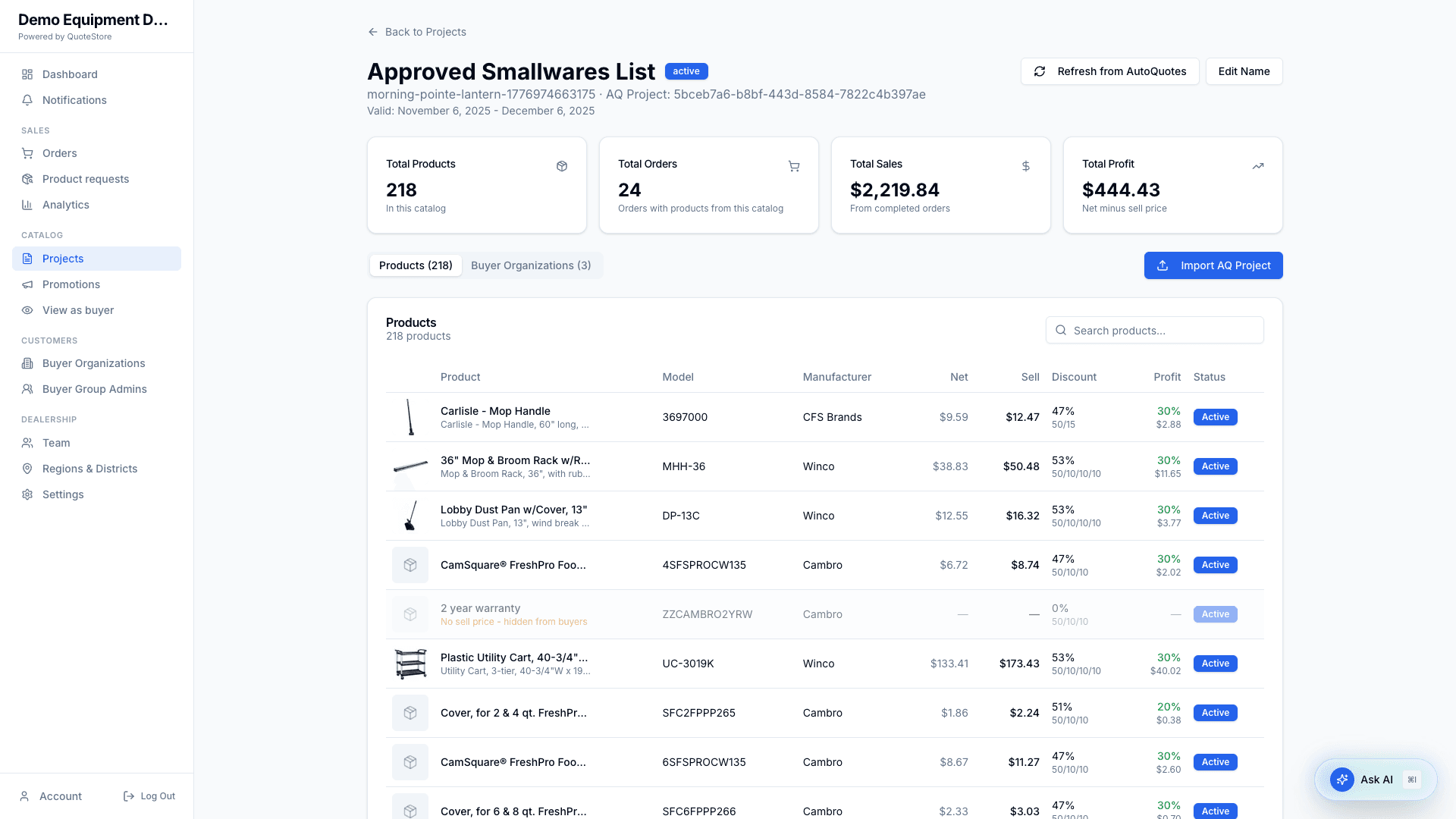
- Edit Name, Activate, or Deactivate (archive) the project.
- Refresh from AutoQuotes — pick the AutoQuotes project, preview what changes (New / Modified / Removed / Unchanged), then confirm.
- Link / unlink buyer organizations — this decides which buyers see the project’s products. Only active linked projects appear in a buyer’s catalog.
Each import brings the project’s products in line with AutoQuotes. A product that is still there stays in buyers’ carts and reorder lists. One that has gone is removed, and a reorder list that had it shows it as no longer available. Past orders are never changed. You get a notification when an import finishes.
Configured products
An AutoQuotes project is a list of numbered items, and each item becomes one product here.
When an item has more than one line in AutoQuotes — the base model, then the warranty, voltage, accessories and anything else you configured with it — your buyer sees one product:
- Its price is AutoQuotes’ total for the item: every line’s sell price added up.
- Its name, model number and picture come from the base model, the item’s first line.
- The other lines are listed on it as what it comes with. They are not products of their own: a buyer cannot order one separately or leave one out.
- Search still finds it: a buyer who searches for one of those lines finds the product.
On the project page a configured product shows its total, with each of its lines and that line’s own net and sell price underneath.
Things to know:
- An item with a single line is an ordinary product, as before.
- To sell an accessory on its own, give it its own item in AutoQuotes.
- The same model configured two different ways is two products. The same model configured the same way twice in one project is one product: the first in the project.
- A project brought in before 14 October 2026 keeps every line as a separate product until you save it again in AutoQuotes and it is brought in again.
One price per product
A buyer sees each product once, at the lowest price across the active projects linked to their organization. So you can lower a price for a buyer by linking a project with lower prices, and you never need to worry about the same item appearing twice.
For a configured product, “the same product” means the same model configured the same way.
Your costs — list, net, and discounts — are never shown or sent to buyers.
8. Promotions
Standard plan. If your dealership moves to Basic, your promotions stop showing to buyers — and so do their discounts — and are kept, unchanged, for when you return to Standard.
Promotions feature products to your buyers on their catalog page and on their Promotions page: a headline, a short message, a date window, an audience, and a list of products. A promotion can simply feature products, or it can carry a discount.
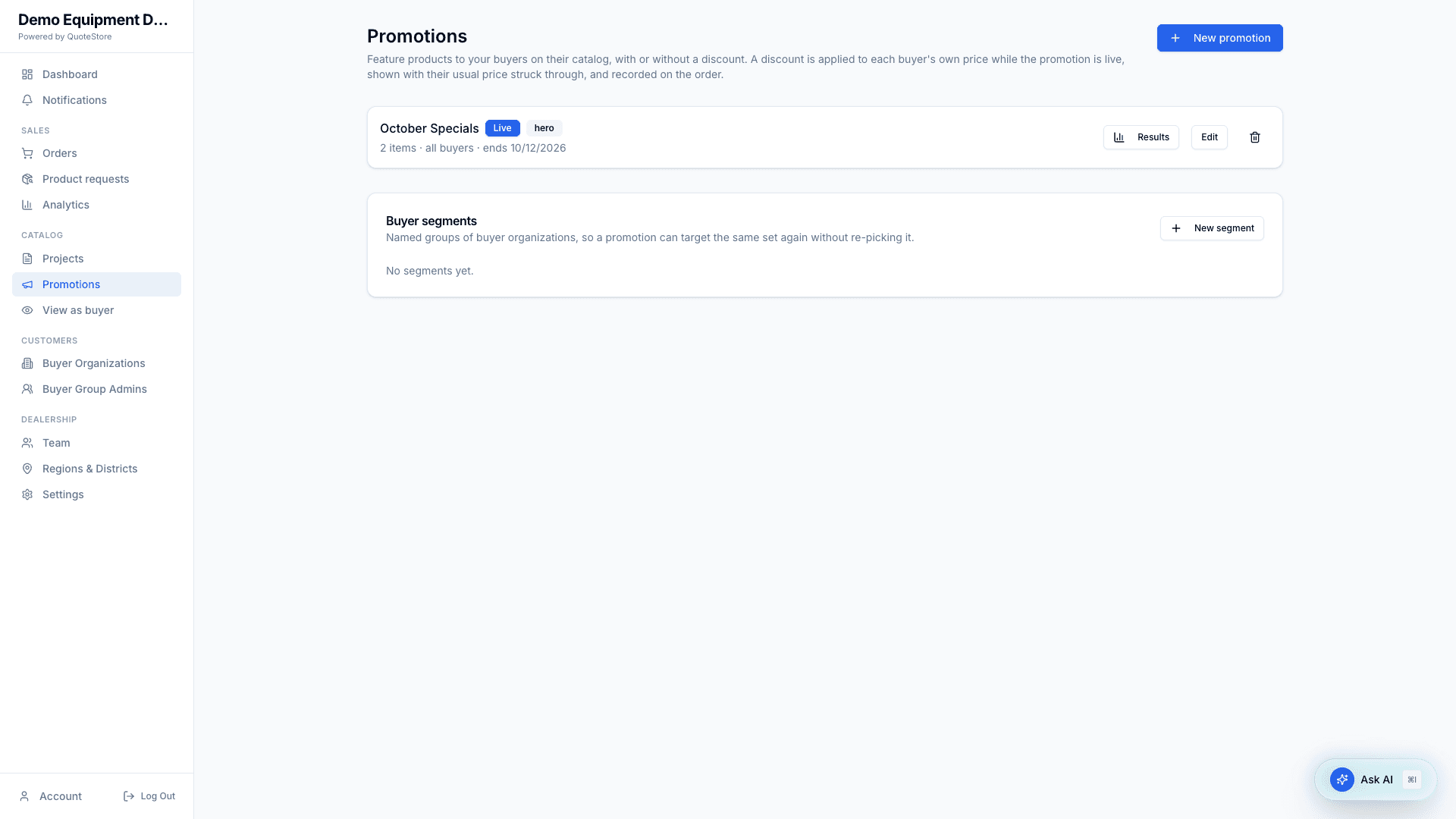
Open Promotions, then New promotion:
- Title (internal) — your name for it. Buyers never see it.
- Headline (shown to buyers) and Short message — what buyers read.
- Placement — how it appears on the buyer’s catalog:
- Banner — a headline block with a button, at the top of the catalog. The button opens the buyer’s Promotions page at this promotion, where every product on it is listed.
- Product row — a row of product tiles with prices. The catalog shows the first eight; See all opens the rest on the Promotions page.
- Button label and Button link — for a Banner. Leave the link empty to send buyers to this promotion on their Promotions page, which is what you want when the promotion has products. Fill it in only to send them somewhere else.
- Discount — choose one:
- No discount, just feature the products — buyers see their usual price.
- Percent off every product — enter the percentage.
- A promotional price per product — type a price next to each product you add.
- Products — search your catalog by name, model, or manufacturer and click a result to add it; click the X to remove it. Each buyer organization sees its own price, and a product a given buyer cannot order is simply left out for them.
- Who sees it — All buyer organizations, Chosen segments, or Chosen organizations. A segment is a saved group of buyer organizations you can reuse (manage them under Buyer segments).
- Starts and Ends — the promotion shows only between these times. Nothing needs switching on or off.
- Status — Draft, Published, or Archived. Only a Published promotion inside its dates is Live.
Where buyers see the products. The buyer’s Promotions page shows every live promotion in full: its headline, its message, and all of its products with prices and an Add button — whichever placement you chose. The catalog shows the short version.
How a discount works. It applies to each buyer’s own price while the promotion is Live. Buyers see the lower price with their usual price struck through — on the catalog, the product page, and in the cart — and pay it at checkout. A discount can only lower a price: if a buyer already pays less than a promotional price, they keep their price. If two live promotions cover the same product, the buyer gets the lower price. The price is fixed when the order is placed: an order already placed keeps its price after the promotion ends, and the order shows which promotion applied and what the usual price was.
Results on a promotion shows views, clicks, adds to cart made from the promotion, how many buyer organizations it reaches, and the orders and dollars for its products from those buyers during the promotion and for 14 days after it ends. Ordered dollars count any order for a featured product from a targeted buyer in that window, whether or not they clicked the promotion; cancelled and rejected orders are left out. For a promotion with a discount, Orders at the promo price and Discount given are exact: they count the order lines that were actually charged the promotional price.
9. View as buyer
View as buyer shows you what one of your buyer organizations sees in their storefront: the same products, at the same prices. Choose the organization, then browse or search their catalog.
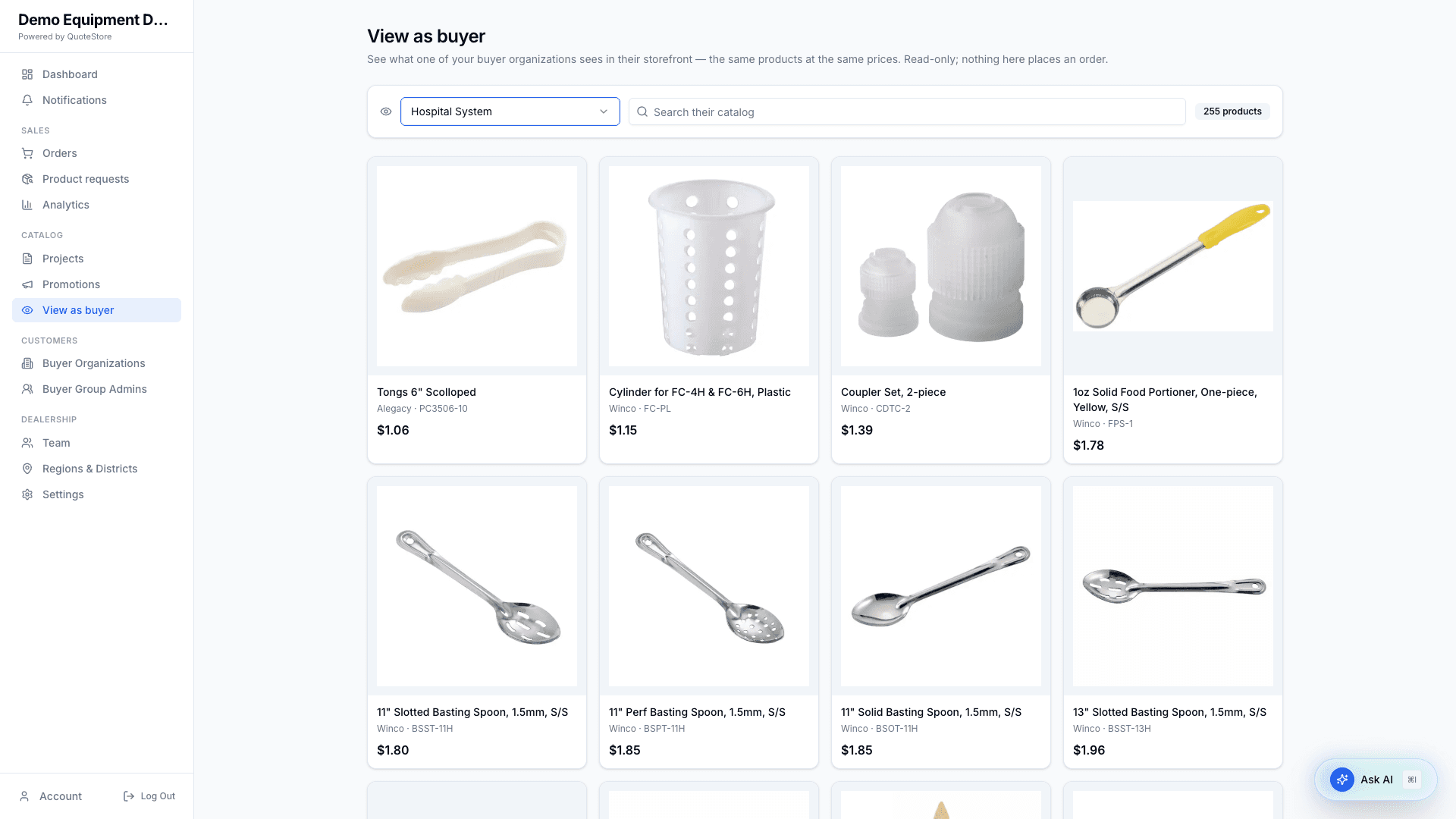
It is read-only. Nothing here adds to a cart or places an order, and it is not counted in Analytics. If an organization sees no products, the page says so — usually because no active project is linked to it.
10. Buyer Organizations
Buyer Organizations lists your buyer customers with their region and district.
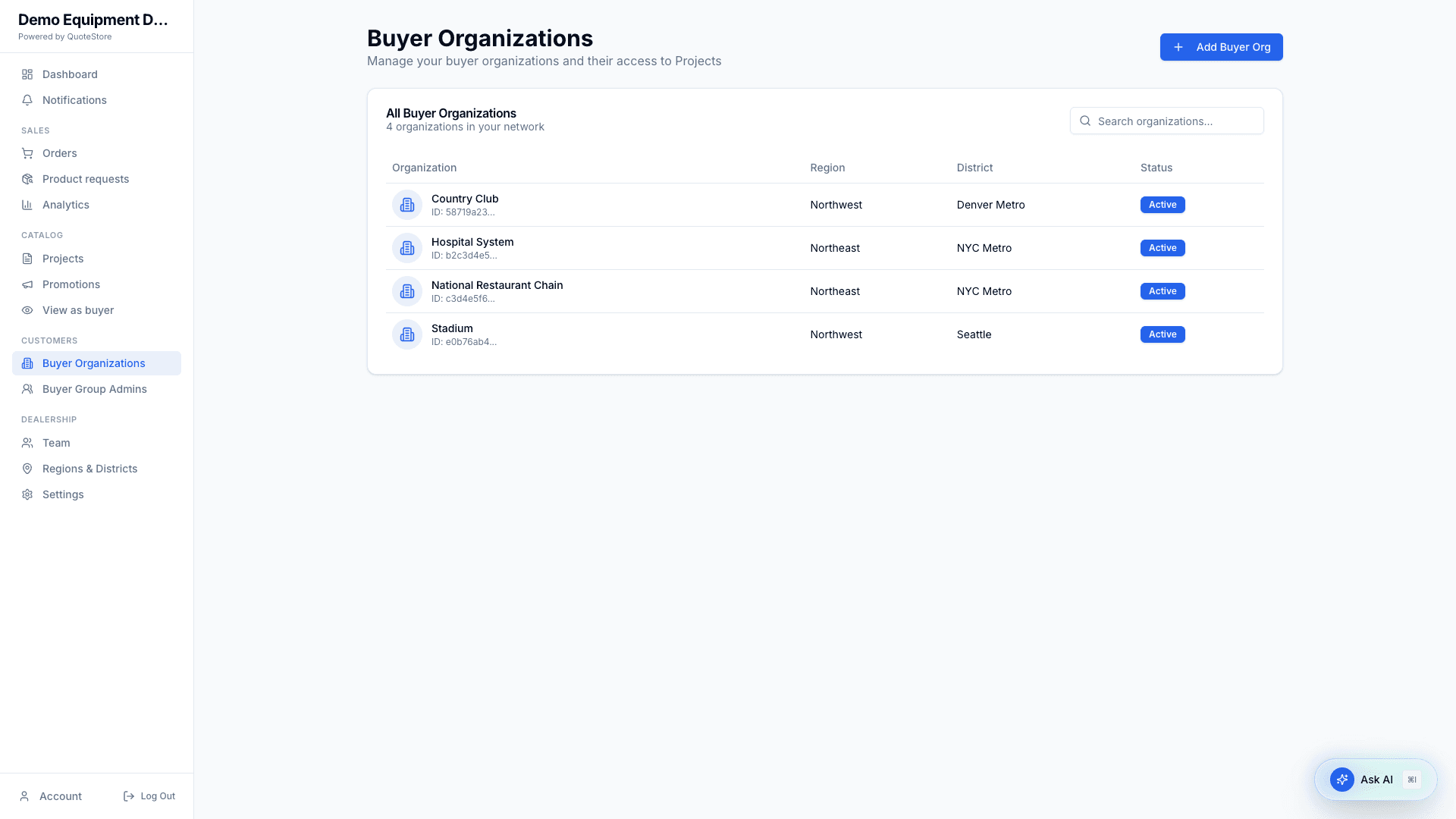
- Add Buyer Org — create a buyer organization: name, region and district, and credit limit.
- Buyer portal limit. Each buyer organization is a buyer portal. The Basic plan includes 25: from the 20th, Add Buyer Org tells you how many you have left, and at the limit it will not create another until Atero raises it or you move to Standard, which has no limit. Every buyer organization you have created counts.
Buyer organization detail
Open a buyer organization for its profile, Open Credit, linked projects, and users.
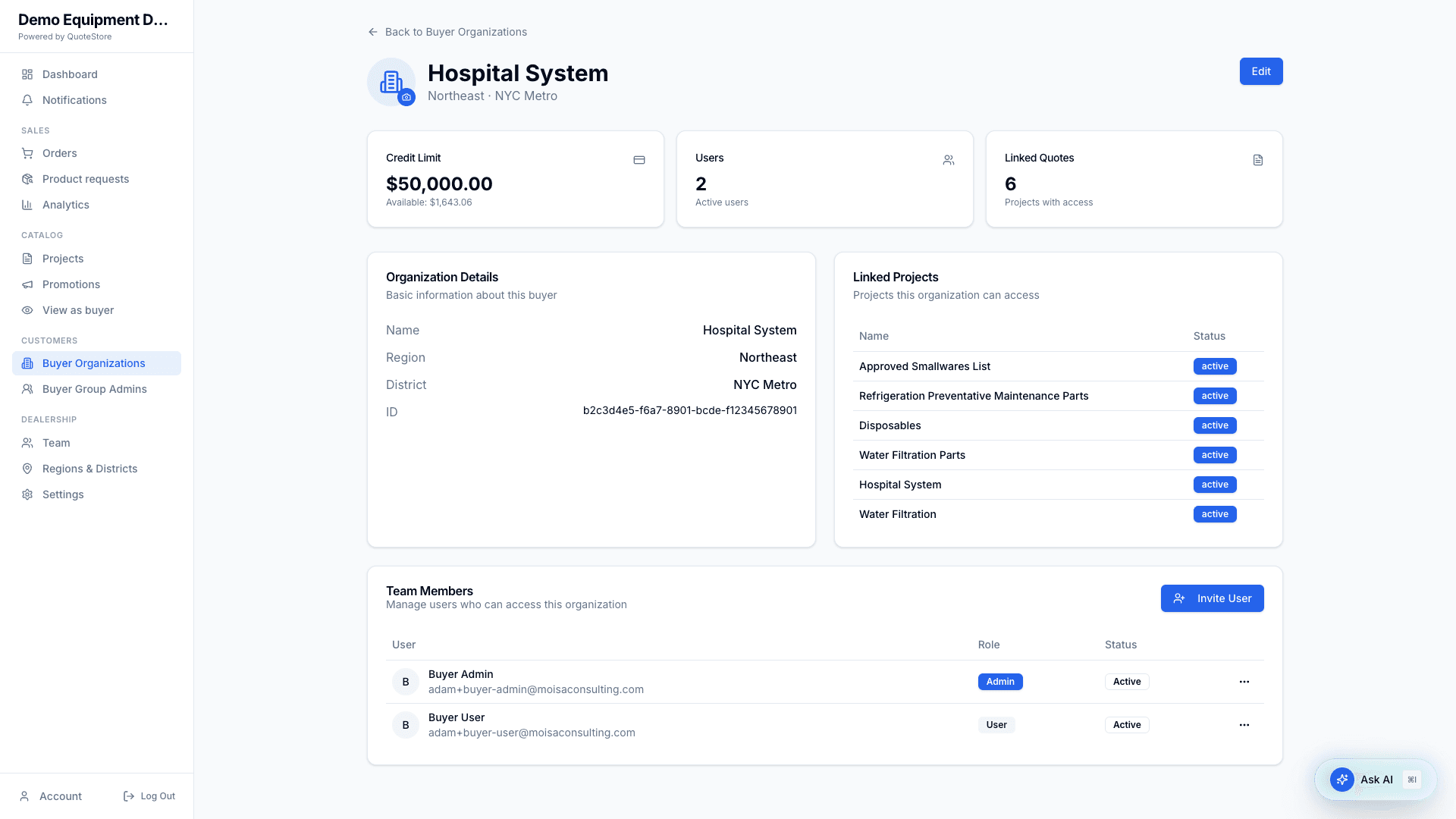
- Edit its details and its Open Credit limit. The available figure updates by itself.
- Upload or remove its logo.
- See which projects it can access.
- Invite User — as Admin (can manage their team and approve orders) or User. Promote, demote, deactivate, or remove people from the menu on each row.
Whether a buyer’s order needs their own admin’s approval before it reaches you is the buyer’s choice, set by a buyer admin on their Account and Team pages. See the Buyer Guide. Until a buyer admin approves, you do not see the order.
What your buyers see
Buyers see your name and logo, not QuoteStore’s, throughout their storefront and on the emails they are sent. Upload your logo under Settings.
Your buyers can also sign in on a page that carries your name and logo, at an address you can link from your own website. Ask QuoteStore support for your sign-in link, or to set up your own web address such as order.yourcompany.com.
11. Buyer Group Admins
Admin only. A buyer group admin is one person who shops and approves orders for several of your buyer organizations — a procurement lead for a group of locations, for example.
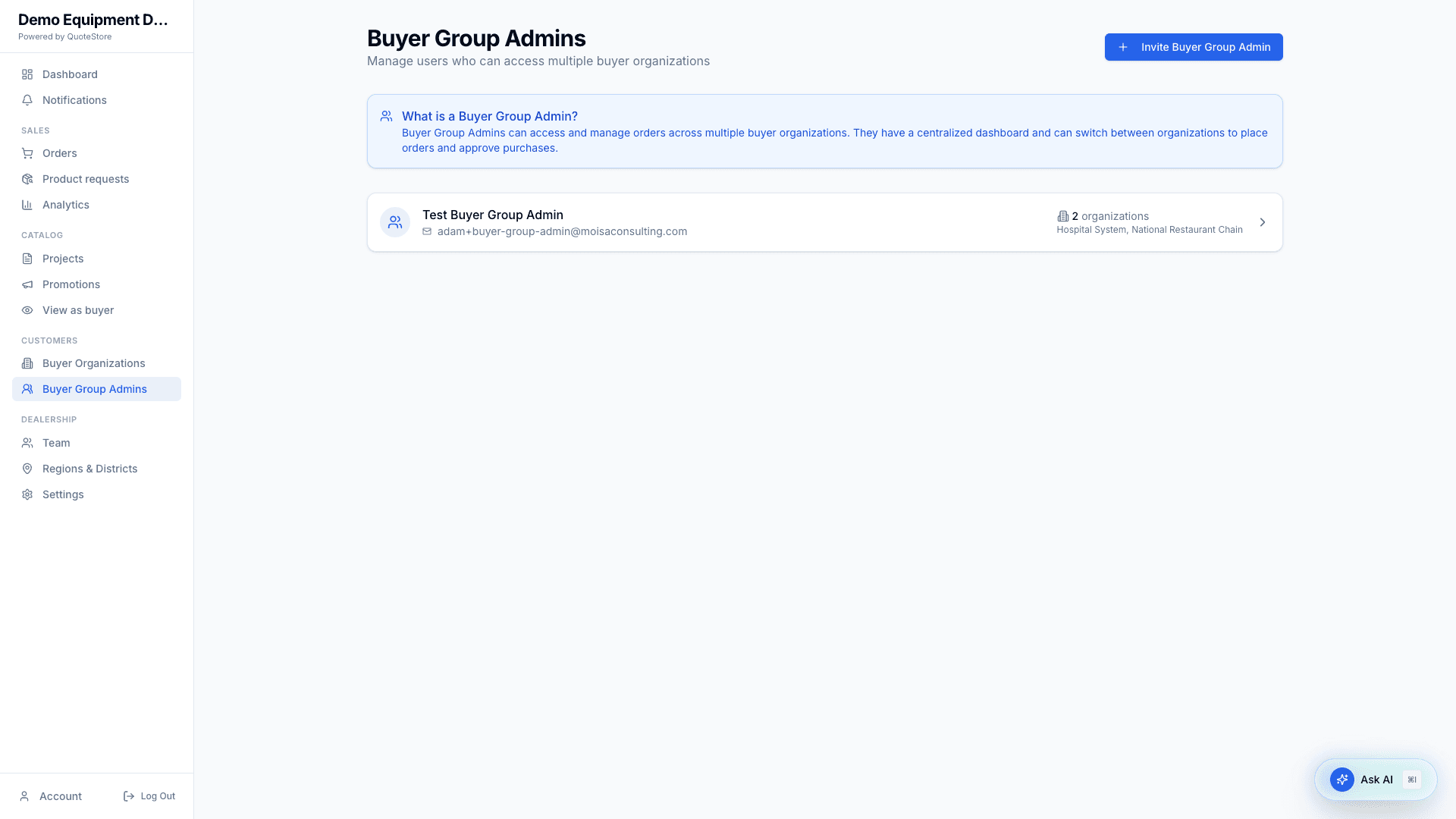
Invite one, then assign or remove the buyer organizations they act for. In each of those organizations they can do what a buyer admin can, and they are told what a buyer admin is told.
12. Master distributors and resellers
Most dealerships can skip this section. It applies only if QuoteStore has attached your dealership to a master distributor you buy from, or attached other dealerships to yours as resellers. Ask QuoteStore support to set either up; you cannot do it yourself.
If you place orders with a master distributor
When one of your buyers places an order, you can place that same order with your master distributor at your net price, without re-typing it.
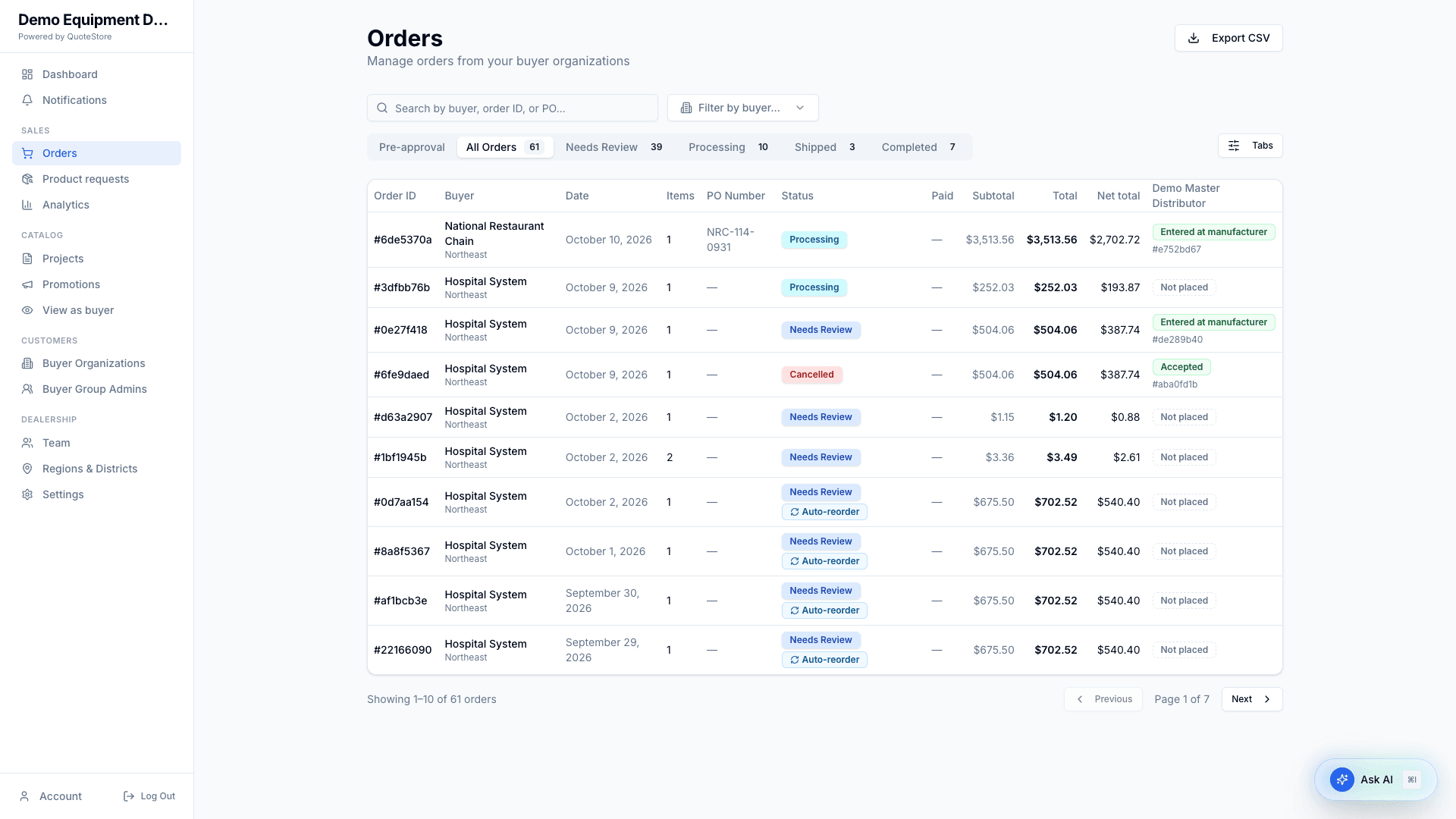
- Orders gains two columns: Net total (what the order costs you) and a column named for your master distributor, showing Not placed or where the order stands with them.
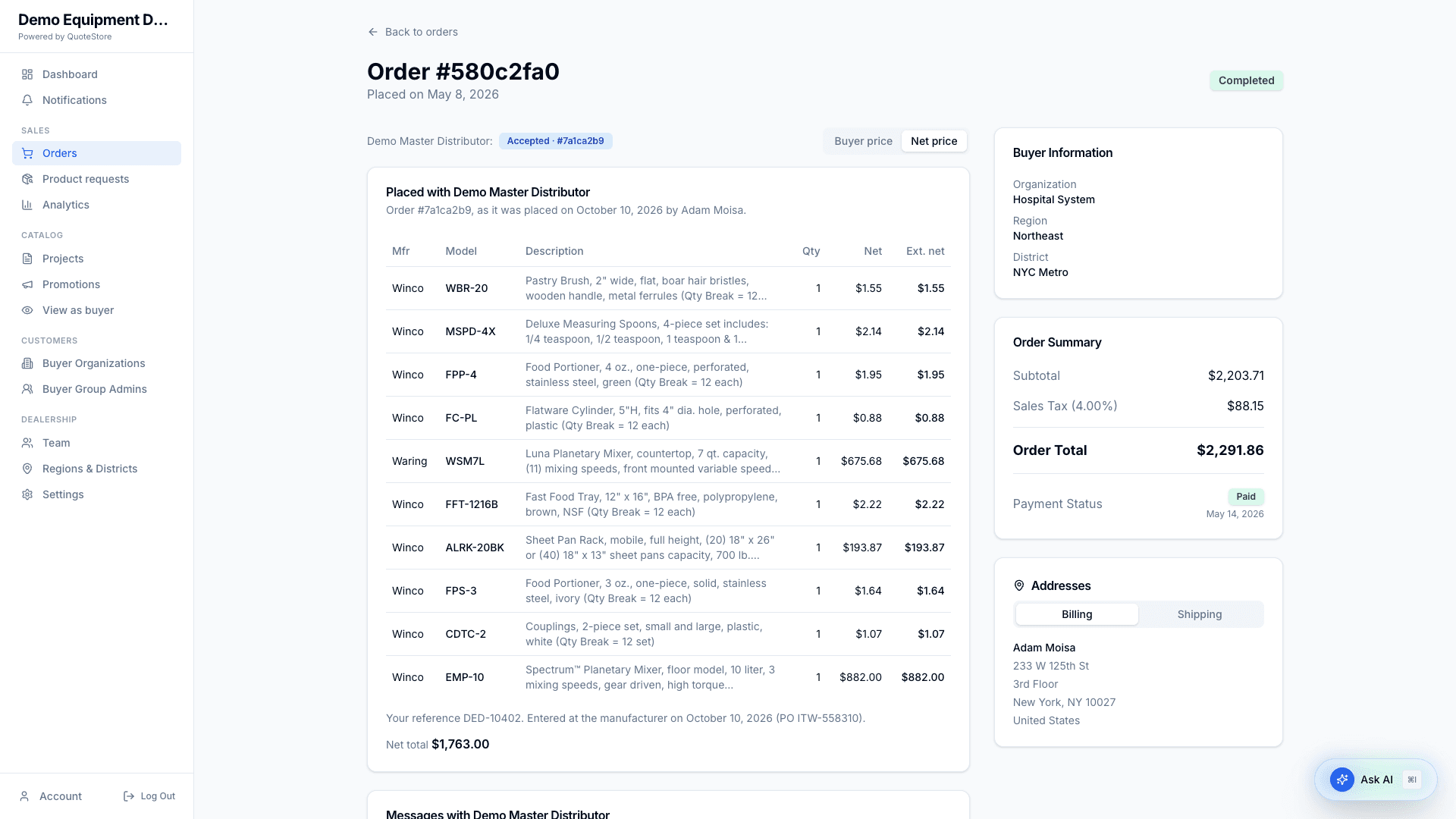
- Open an order and switch from Buyer price to Net price. You see each line at net. A line with no net price in AutoQuotes cannot be placed; a line whose net is higher than what your buyer pays is flagged so you can check it first.
- Select Place order with …, choose the lines to send (all are selected to start), add your PO or reference and an optional note, and confirm. The confirmation shows the net total, your customer and the ship-to address before anything is sent.
- Your master distributor receives the lines at your net price, your customer’s name, and the ship-to address. They never see what your buyer pays you.
- After placing, the same view shows the order’s status with your master distributor and a Messages thread between your dealership and theirs. Your buyer is not part of that conversation and sees none of this.
- If your master distributor declines the order, their reason is in the messages and you can place it again.
- You are notified, in the app and by email, when your master distributor accepts, declines, ships or completes an order, and when they write to you. In Notifications → Settings, Declined, Shipped and Completed have their own switches under Orders placed with your master distributor; an acceptance follows your Orders approved setting and a message your Order messages setting.
- The Net price view also shows any lines your master distributor marked on backorder, and the date and PO number when they entered the order at the manufacturer. In the Orders column for your master distributor, an order reads Not placed, Placed · awaiting review, Accepted, Shipped, Completed or Declined.
- If you reject your own buyer’s order after placing it with your master distributor, they are told automatically in the messages. Their copy is not cancelled for you: agree with them what happens to it.
Placing an order with your master distributor does not change your buyer’s order. Approve, ship and mark it paid as you normally would.
If you are a master distributor
Orders your resellers place with you arrive in your normal Orders list, marked Reseller, showing the reseller and who the order is finally for. Open one and work it like any other order: approve or reject it, reply to the reseller, mark it shipped, mark it paid.
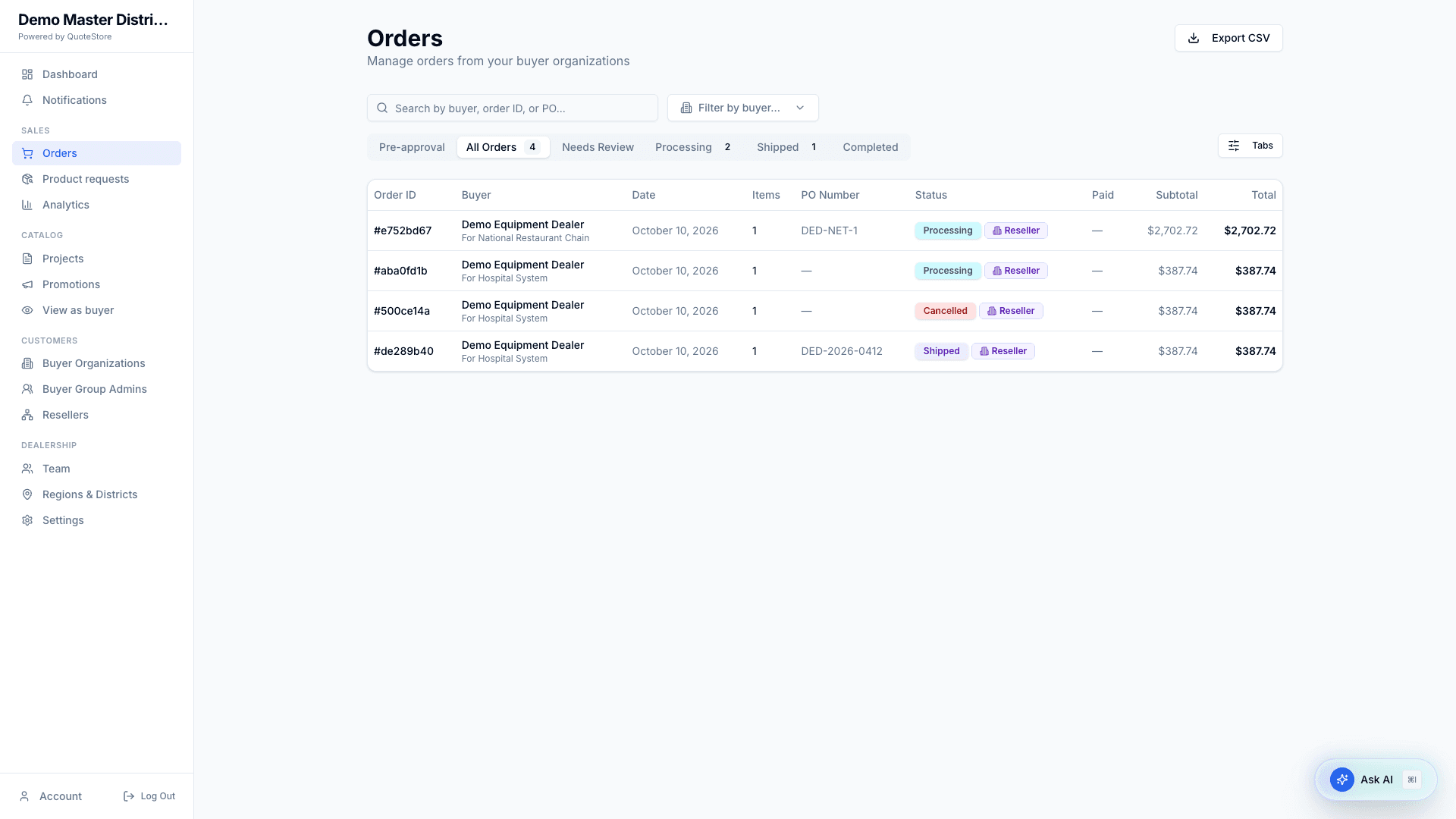
- Prices on a reseller order are what the reseller pays you.
- A configured product is one line, with each of its lines listed beneath at what the reseller pays for it.
- You cannot change quantities, remove or add lines, or request changes on a reseller order. Agree any change in the messages, reject the order, and the reseller places it again.
- Copy for manufacturer downloads the lines, quantities, list prices, your reseller’s reference, the end customer and the ship-to address, for entering in the manufacturer’s own system, and leaves an internal note on the order that it was downloaded. It contains no reseller price or discount. If you sync your own projects, it also carries your own net. A configured product is followed by a row for each of its lines, named in the Part of column, so every model number is there to key in.
- Once you have approved the order, Mark entered at manufacturer records that you have keyed it in, with the manufacturer’s PO number if you have one, and tells the reseller.
You are notified when a reseller places an order with you or writes to you, the same as for any buyer, and when QuoteStore connects or disconnects a reseller.
Checking the discount on a reseller order
Open a reseller order and you see List, discount and net: for each line, how the reseller arrives at what it pays you. Use it to check the discount is the one you give that reseller.
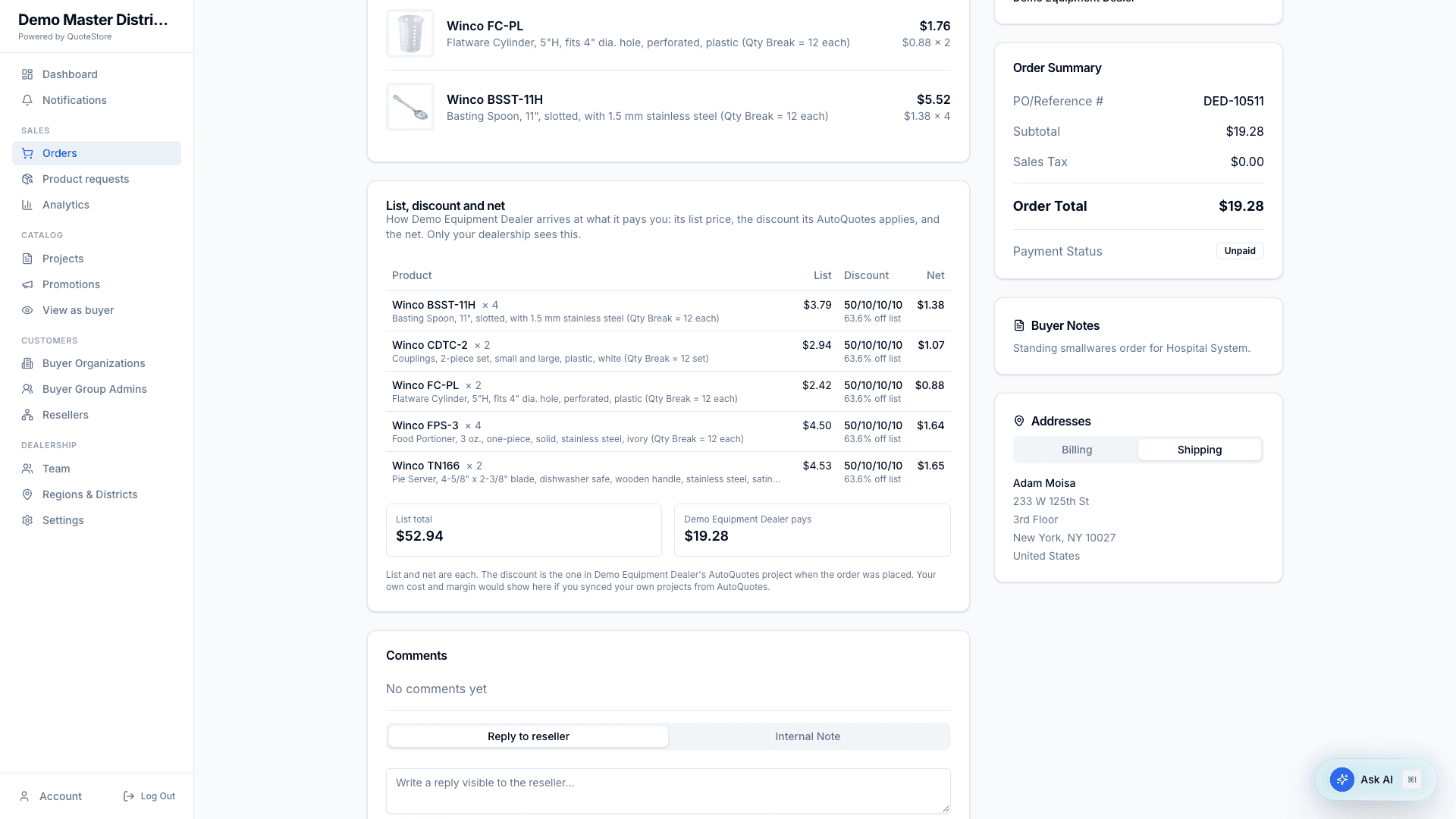
- List — the list price in the reseller’s AutoQuotes project.
- Discount — the discount string their AutoQuotes applies to list, such as
50/10/10, with what it comes to as a percentage off list underneath. - Net — what the reseller pays you for one.
- If the discount, taken off the list price, does not give the net, the line says what it would give. That means the net was set some other way in the reseller’s AutoQuotes.
- If their AutoQuotes has no discount string for a product, the line says None given and still shows the percentage off list.
- A configured product has one row with its totals, then a row for each of its lines with that line’s own list, discount and net. The discount is checked line by line, so the product’s own row says By line. A line whose net AutoQuotes sets directly, such as a start-up visit, says Net priced.
Only your dealership sees this. It never shows what the reseller’s own buyer pays, or the discount the reseller gives its buyer.
An order from one of your own buyers looks like any other order. This card appears only on orders a reseller placed with you.
Your own net and margin. If you sync your own projects from AutoQuotes, the same card adds Your net and Margin on each line whose product one of your projects carries, with totals. Where your projects carry a product at different nets, the highest is used and the line shows the lowest as well. Your net follows your projects, and you can look it up again with Refresh my net, until you mark the order entered at the manufacturer or ship it; after that it is fixed. If you do not sync projects, none of this appears and nothing is missing.
Your resellers
Resellers in the sidebar lists every dealer QuoteStore has connected to you: when it was connected, how many orders it has placed with you, how many are waiting for your review, what it has ordered at net, and when it last ordered. Orders you declined are not counted. Select a dealer to open Orders filtered to it.
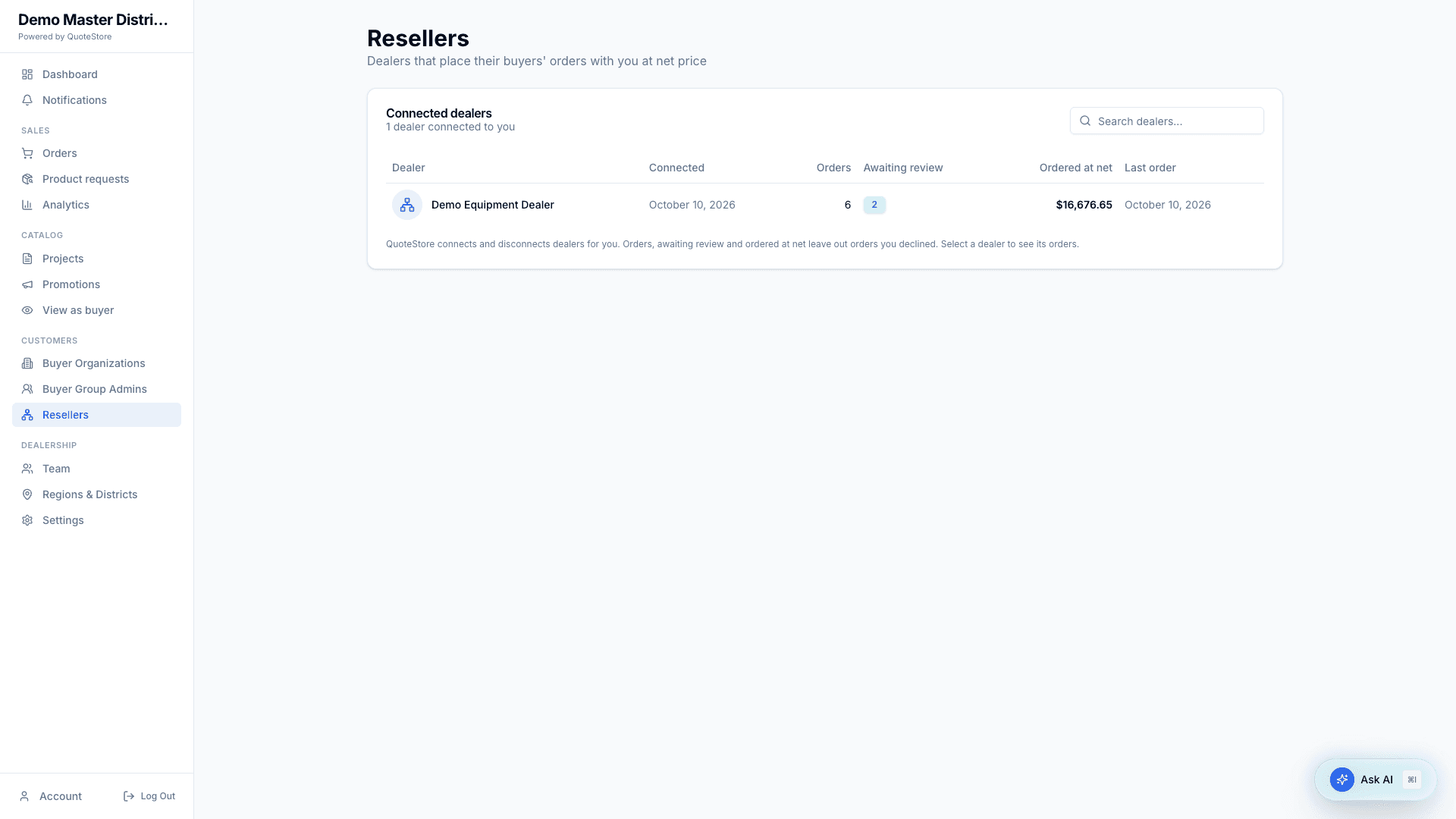
The list is for reference. To connect another dealer or disconnect one, ask QuoteStore support. You see the orders a reseller places with you, never its own buyers or what they pay.
Your resellers do not appear under Buyer Organizations: they are not buyers and have no catalog or sign-in with you. Behind the scenes each reseller is a buyer organization of yours that nobody signs in to, so it does appear wherever you choose buyers for orders: the buyer filter on Orders, the Export CSV dialog, and Analytics. It never counts toward your buyer portal limit.
A reseller’s order exists twice: once as the reseller’s order from its own buyer, and once as the order it placed with you. Each dealership counts its own, so neither double-counts within a dealership.
13. Team
The people in your dealership: their role, what they are assigned to, and whether they are active. Everyone can see this page; only admins can make changes.
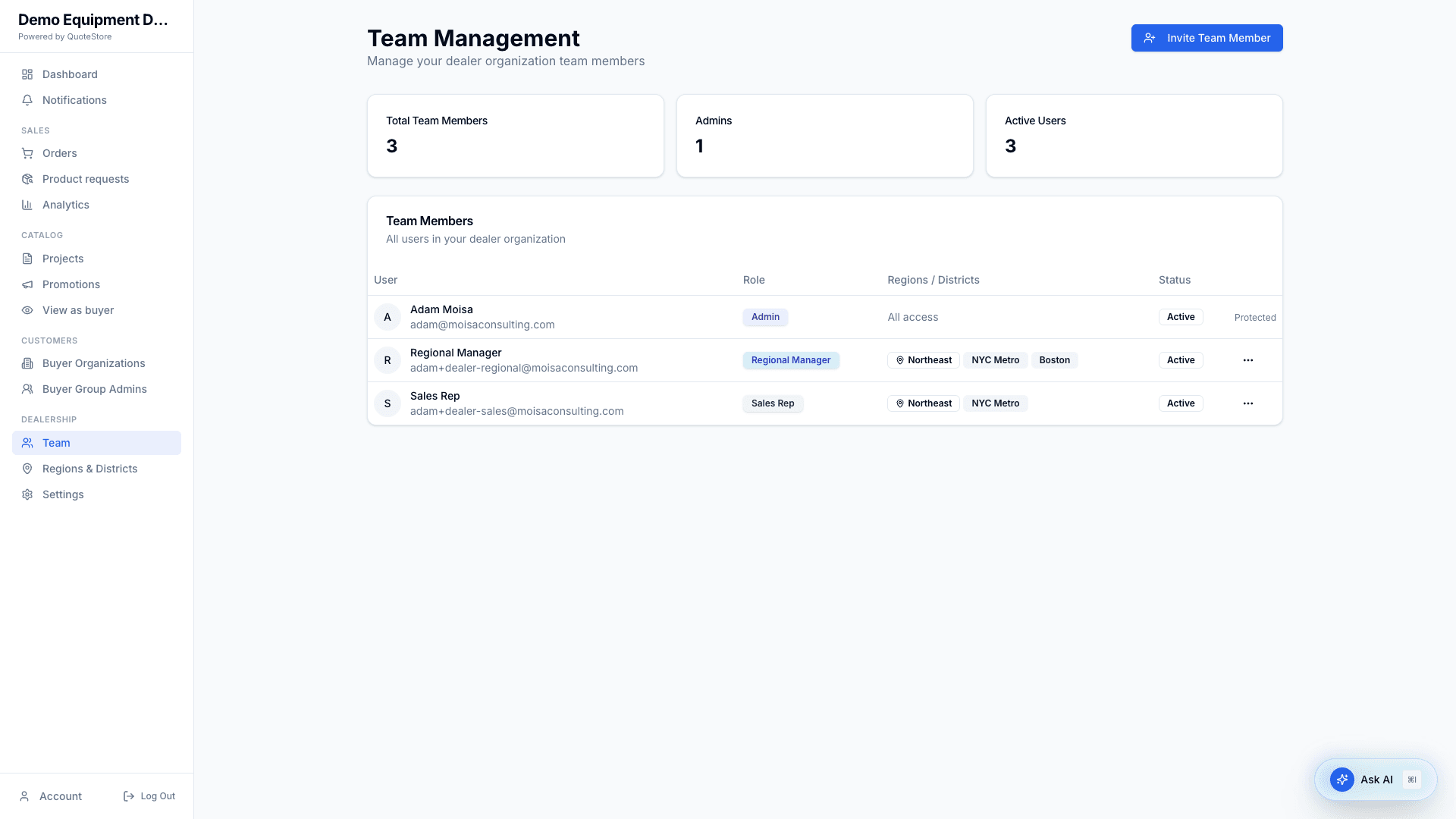
- Invite Team Member — add someone and choose their role. They get an email invitation and choose their own password.
- For a Regional Manager, choose their regions. For a Sales Rep, choose their districts (pick a region first).
- Specific Buyer Organizations — optionally limit the person to named buyer organizations. Leave it empty and they see every buyer organization their regions and districts allow.
- Edit a person’s role and assignments, deactivate them, or remove them. Admin accounts are marked Protected.
Someone who is deactivated loses access to the dealer portal and stops receiving order emails.
Invitations not yet accepted
Under the team, Invitations not yet accepted lists everyone invited who has not set up their account yet: their role, who invited them, and until when their link works.
- An invitation link works for 7 days from when it was sent. An expired one is marked Expired.
- Resend emails a new link, good for another 7 days. Earlier links stop working, so tell the person to use the newest email.
- If an invitation is saved but its email could not be sent, you are told so when you invite; the person appears here, and Resend sends it.
- The × withdraws an invitation. Its link stops working.
The same list appears on a buyer organization’s page, for the people invited to it, and on Buyer Group Admins.
14. Regions & Districts
The structure that decides which buyers a regional manager or sales rep sees. Everyone can see this page; only admins can make changes.
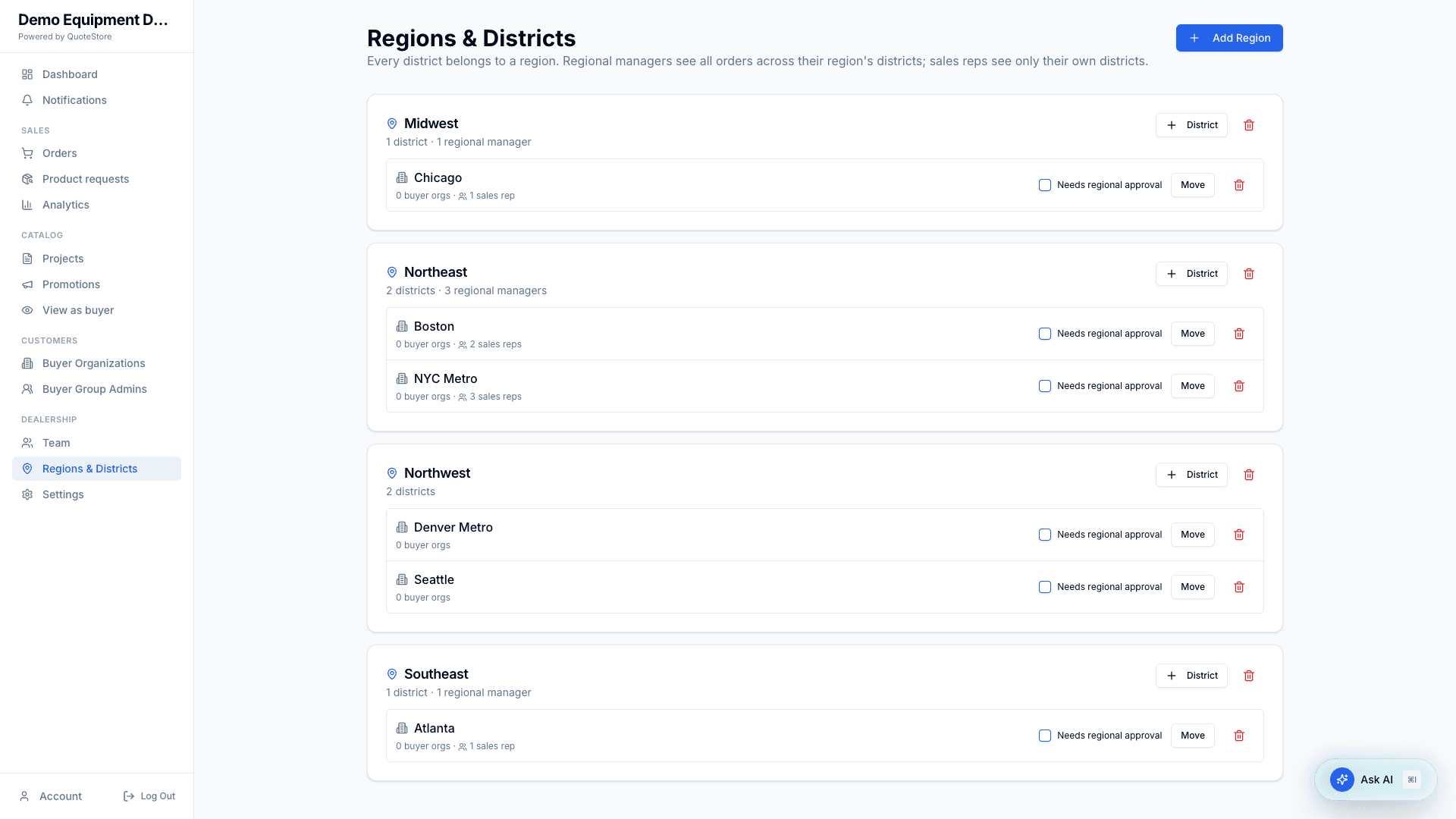
- Regions hold districts. A regional manager assigned to a region sees every buyer organization in every district of that region.
- A Sales Rep assigned to a district sees that district’s buyer organizations.
- A buyer organization belongs to a district, and through it to a region.
- Require regional approval (when adding a district), or the Needs regional approval box on an existing one, means an order approved by a sales rep for a buyer in that district goes to a regional manager before it is processed; the district shows a Regional approval badge. Without it, the sales rep’s approval is final. Standard plan: on Basic the setting is not shown and every approval is final.
Each region shows how many districts and regional managers it has; each district, how many buyer organizations and sales reps.
15. Settings & Account
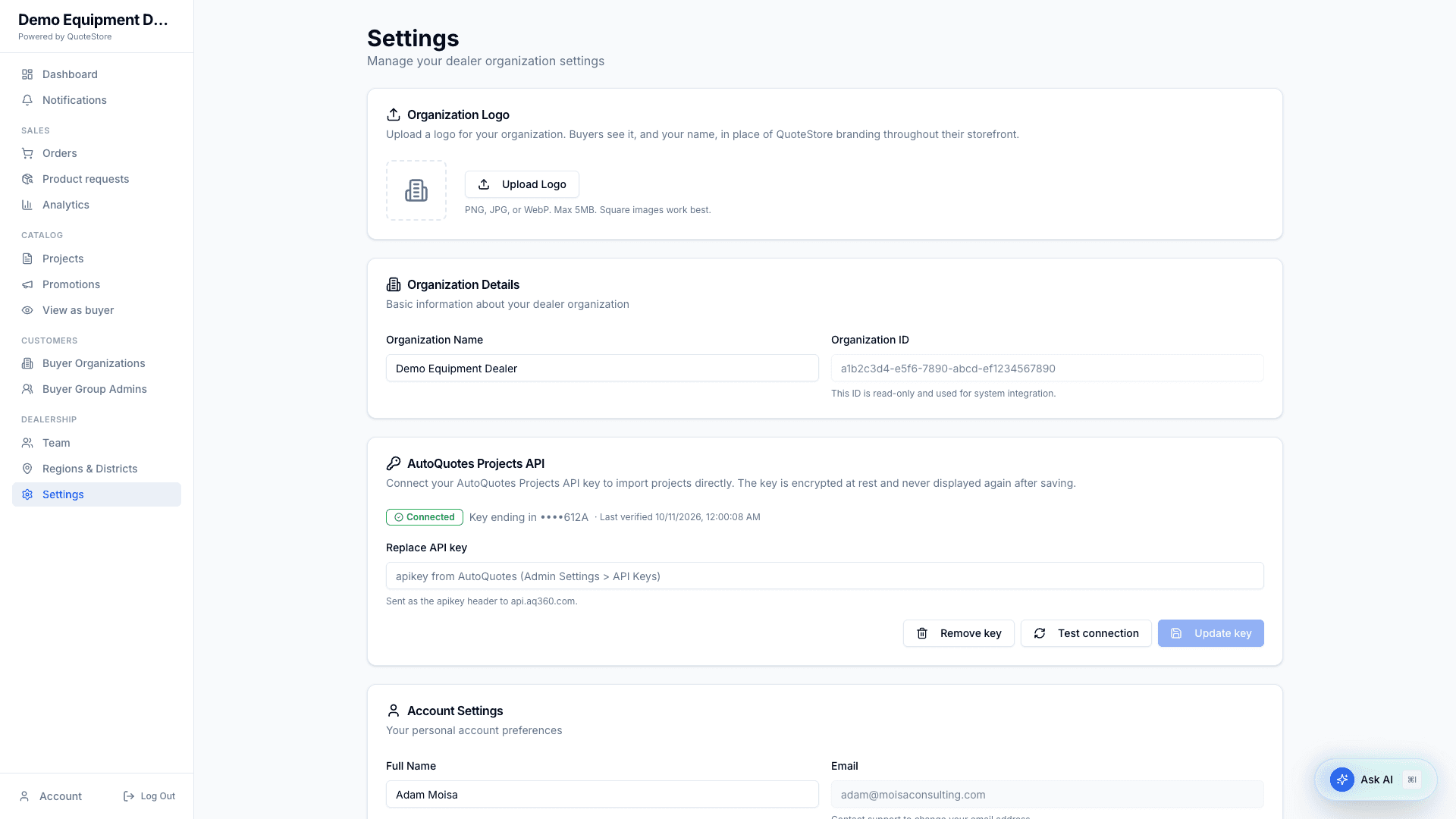
- Organization Logo — your buyers see it, with your name, in place of QuoteStore branding throughout their storefront.
- Account Settings — your name, email (read-only), role, and password.
The sidebar Account link opens your own account page: your profile, your role, and shortcuts to your projects and orders.
Forgot your password? Choose Forgot password? on the sign-in page and you are emailed a reset link.
Admin-only settings
- Organization Details — edit the organization’s name. The organization ID is read-only.
- AutoQuotes Projects API — paste your AutoQuotes Projects API key. It is checked before it is saved, stored encrypted, and never shown again. Once it is set, projects sync from AutoQuotes on their own and Refresh brings them in on demand. Test connection checks the key still works.
Quick reference — dealer routes
| Page | Path |
|---|---|
| Dashboard | /dealer/dashboard |
| Notifications | /dealer/notifications |
| Notification settings | /dealer/notifications/settings |
| Orders | /dealer/orders |
| Order detail | /dealer/orders/[id] |
| Product requests | /dealer/product-requests |
| Analytics | /dealer/analytics |
| Analytics for one buyer organization | /dealer/analytics/buyers/[id] |
| Projects | /dealer/projects |
| Project detail | /dealer/projects/[id] |
| Promotions | /dealer/promotions |
| View as buyer | /dealer/preview |
| Buyer Organizations | /dealer/buyers |
| Buyer org detail | /dealer/buyers/[id] |
| Resellers (master distributors) | /dealer/resellers |
| Settings | /dealer/settings |
| Account | /account |
Admin-only routes
| Page | Path |
|---|---|
| Buyer Group Admins | /dealer/buyer-group-admins |
| Team | /dealer/team |
| Regions & Districts | /dealer/regions |