Buyer Group Admin Guide
Audience: Buyer Group Admins (multi-org buyers). Where you work: the console at
/buyer-group/*, plus the storefront when “acting as” one of your organizations. New here? Read the Platform Overview first.
A Buyer Group Admin (also called a “multi-org buyer”) is a buyer who manages purchasing across several buyer organizations that belong to the same dealer. Think of a procurement lead overseeing multiple hospitals, campuses, or branches. You get a centralized console plus the ability to “act as” any one of your assigned organizations to shop and approve its orders.
You are created and assigned organizations by your dealer (or a super admin).
The floating Ask AI button answers how-to questions for multi-org buyers, including buyer shopping and approval steps. It does not describe dealer-admin or super-admin tools.
1. How it differs from a regular buyer
| Regular Buyer | Buyer Group Admin | |
|---|---|---|
| Organizations | Exactly one | Many (assigned to you) |
| Default landing | /catalog | /buyer-group/dashboard |
| Shopping | Always in their one org | In whichever org you’ve switched into |
| Approvals | Buyer admins, for their org | You, for any org you’re currently acting as |
To shop or approve for a specific organization, you first switch into that org’s context (an “act as” mode). Until you pick an org, the catalog and cart aren’t available.
In each of your organizations you can do what a buyer admin there can: shop its catalog at its prices, check out on its Open Credit, approve or reject its orders, accept changes from the dealer, manage its addresses, and decide whether its orders need an admin’s approval. Each organization has its own cart, so what you add for one is not mixed with another.
Notifications
You are told what a buyer admin of each of your organizations is told. When the dealer approves, rejects, ships or completes an order, asks you to accept changes, or writes a message on an order, you get an email, and it appears under the bell while you are in that organization. The bell shows one organization at a time: the one you have switched into.
To choose what you receive, open View all notifications from the bell and select Settings. Each notification has its own switch for In app and for Email, and All notifications at the top turns everything off at once. Your settings apply across all your organizations.
2. The dashboard
Your dashboard aggregates across all your organizations: how many orgs you manage, total and pending orders, combined available credit, and recent orders from everywhere.
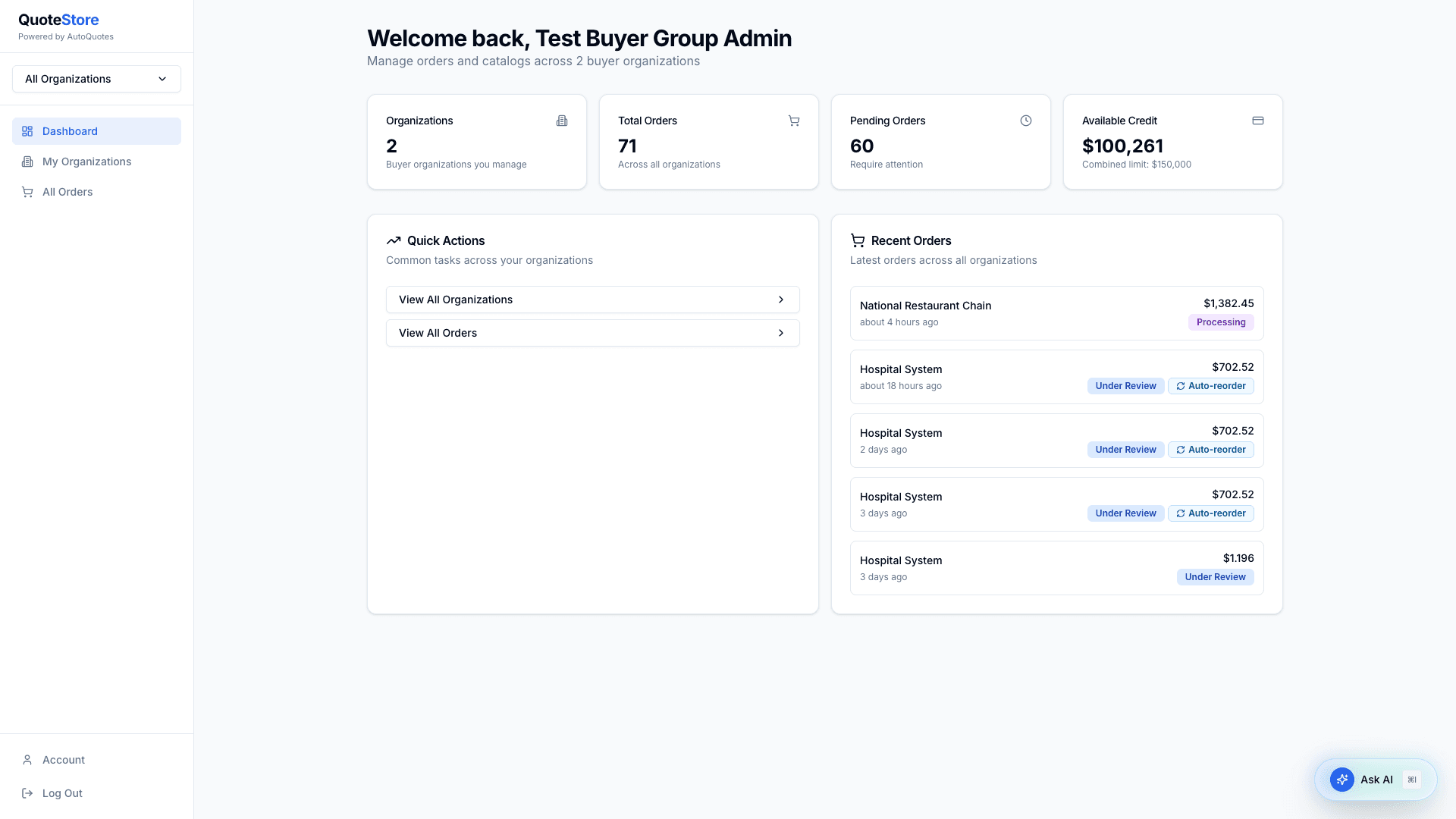
The organization switcher at the top of the sidebar (shown as “All Organizations”) is how you move between the cross-org view and acting as a single org.
3. My Organizations
This page shows a card for each organization you manage, with its order count, available credit, and pending-order badge.
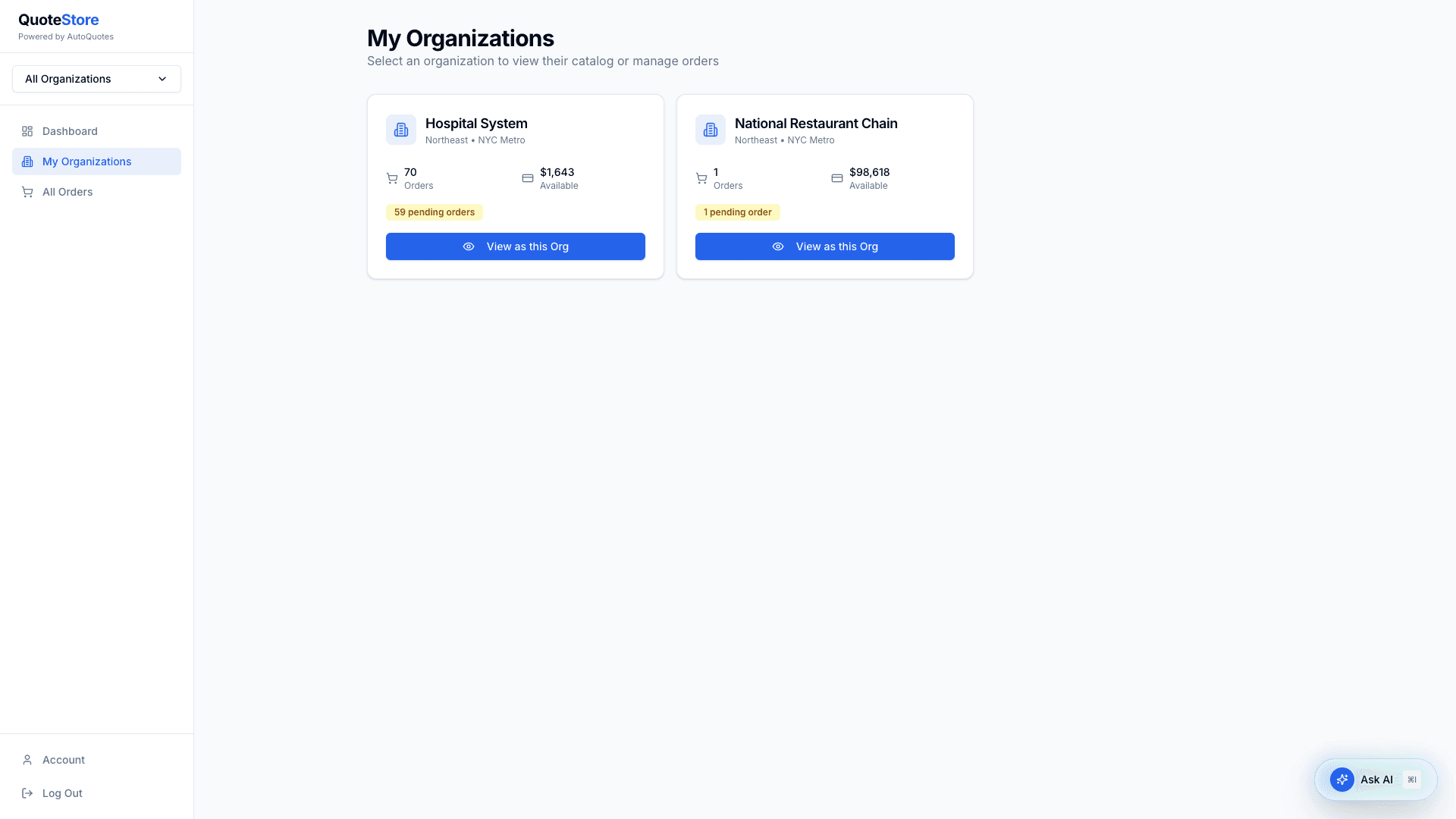
Click View as this Org to switch into that organization’s context. From there you can browse its catalog (including search and Related products), build a cart (with Suggested for you), use Reorder Lists and Promotions from the menu at the top, and check out exactly like a buyer — but on that organization’s behalf and Open Credit. Dashboard at the top takes you back to the view across all your organizations. Until you pick an org, catalog, cart, and reorder lists are not available.
An order you place does not wait for anyone’s approval inside the organization: you are its admin. It goes straight to the dealer for review. See the Buyer Guide for the catalog, cart, orders, and reorder lists themselves.
4. All Orders
A single, filterable view of every order across all your organizations, with status tabs (Awaiting Buyer, Needs Review, Changes Sent, Processing, Shipped, Completed, Cancelled) and an organization filter.
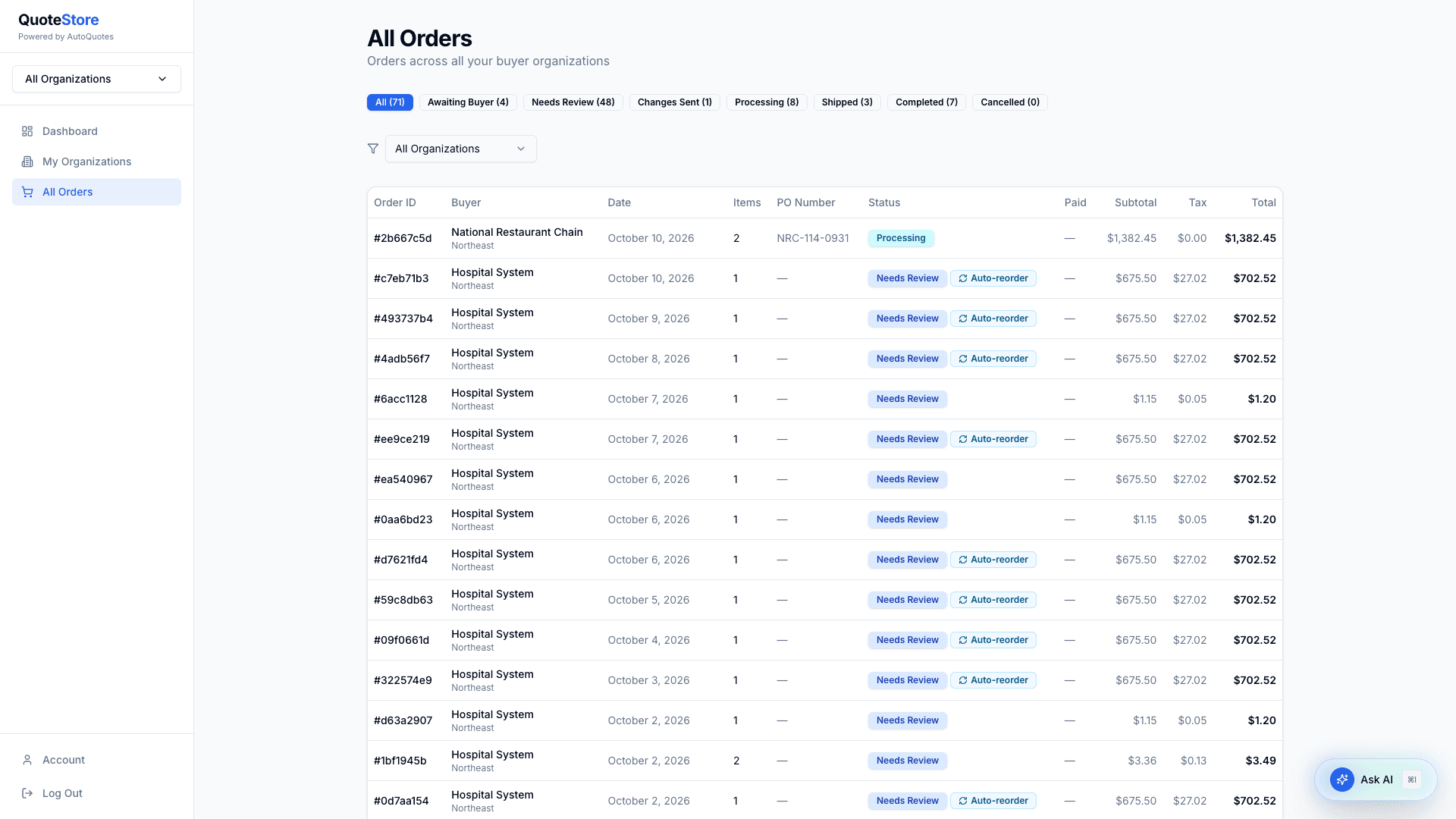
Click any order to open its detail. When the order belongs to the organization you’re currently acting as, you can approve or reject it, and accept or reject changes the dealer made to it (including items they added, which are marked) — the same approval powers a buyer admin has, but spanning all your organizations. Rejecting changes needs a reason, and puts the order back as it was placed.
5. Typical workflow
- Review the cross-org dashboard for anything needing attention.
- To place an order: go to My Organizations → View as this Org, then shop and check out.
- To act on orders: use All Orders, open an order, and approve/reject/accept changes (switching into that org’s context if prompted).
Quick reference — buyer group admin routes
| Page | Path |
|---|---|
| Dashboard | /buyer-group/dashboard |
| My Organizations | /buyer-group/orgs |
| All Orders | /buyer-group/orders |
| Order detail | /buyer-group/orders/[id] |
| Catalog (when acting as an org) | /catalog |
| Cart (when acting as an org) | /cart |
| Reorder Lists (when acting as an org) | /reorder-lists |
| Account | /account |